
Steps to Author Background Color Container Component:
Step 1: Click on drag components here, and click on + icon to add the component on page.

Background Color Container Component





Steps to Author Background Color Container Component:
Step 1: Click on drag components here, and click on + icon to add the component on page.

Step 2: Search and select back ground color container component from dropdown list and then drag and drop it onto the desired location on the page.

Step 3: Click on the highlighted icon to configure the component.

Step 4: Author the component as shown below


Authoring Fields
| Authoring Field | Description |
| Add Bottom Padding to container | If checked it will add bottom padding to the container |
| Align content to the center | If checked it will align content to the center |
| Container Color | It is a required field and used to display the background color in the page |
| Padding Right | |
| Desktop | It is used to add right pading for desktop |
| Mobile | It is used to add right pading for mobile |
| Padding Left | |
| Desktop | It is used to add left pading for desktop |
| Mobile | It is used to add left pading for mobile |
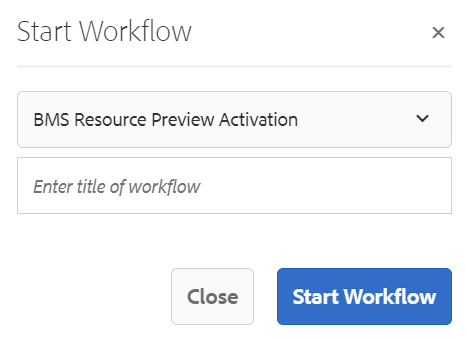
Step 5: After authoring all the fields, start workflow as shown below.

Example : Background Color Container Component
Example : Background Color Container Component