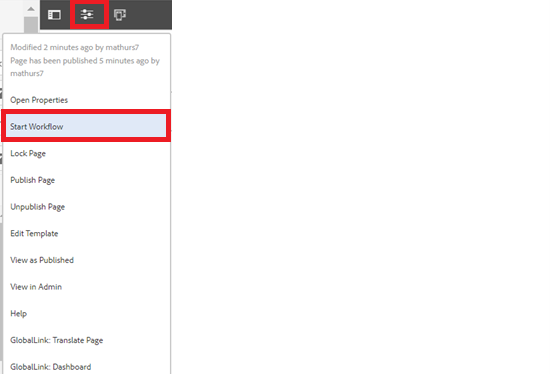
To enable Back To Top component for the pages, User should alter the properties of a locale page by clicking on the properties tab, as shown below.
Back To Top Component

Back To Top Component





To enable Back To Top component for the pages, User should alter the properties of a locale page by clicking on the properties tab, as shown below.

Step 2:Navigate to BuildEasy site settings Tab, and disable Content Navigation check box and enabled Show Back to Top checkbox as shown in the below example.

Step 3 :By saving the above configurations, User will be able to see back to top component inside footer component of locale page, as shown in the below example
Author can configure component by selecting configure icon as showcased in below image.

Step 4: In the component configuration dialog, you can author the required fields


Authoring Fields
| Field | Description | |
| Text | This is a text authoring field to author the text. | |
| Hide Text | Check Box field, If enabled text will be hidden. | |
| Text Color | Color Picker field to add color to text |
|
| Font Size of Text | Number field to author font size of text. | |
| Font Weight of Text | Number field to author font weight in the Number format with minimum value 100 | |
| Width | Number field to author width of text. | |
| Background color | Color Picker field to add Background color to text | |
| Border Radius | Text authoring filed to author Border Radius in the format of Top-Right-Bottom-left |
|
| Box Shadow | Text authoring field to author box shadow. | |
| Padding | Text authoring field to author padding in the format of Top-Right-Bottom-Left | |
| Image | Image can be authored from dam that needs to be displayed. |
|
| Width of the Image | Number field to author width of the image | |
| Hide Image | Checkbox field if enable image will be hidden | |
| Swap image and label position | Checkbox field if enabled text will be top and image will be down |
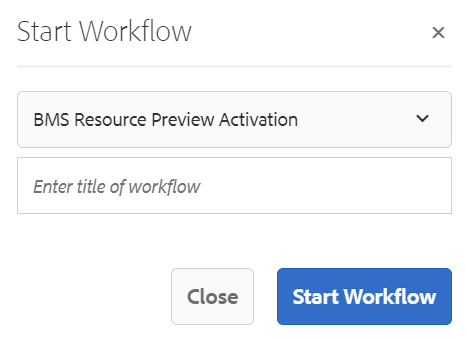
Step 5: After authoring all the fields, start workflow as shown below.