
Steps to Author Summary Component:
Step 1: Click on drag components here, and click on + icon to add the component on page.

Summary Component





Steps to Author Summary Component:
Step 1: Click on drag components here, and click on + icon to add the component on page.

Step 2: Search and select summary component from dropdown list and then drag and drop it onto the desired location on the page.

Step 3: Click on the highlighted icon to configure the component.

Step 4: Author the properties tab as shown below.


Authoring Fields
| Authoring Field | Description |
| Heading | This field is used to display the heading |
| Description | It is a description field and author can use this field to display the description |
| Image asset | Image can be author from the Dam path |
| Alt Text | This field is used as alternative text for the image |
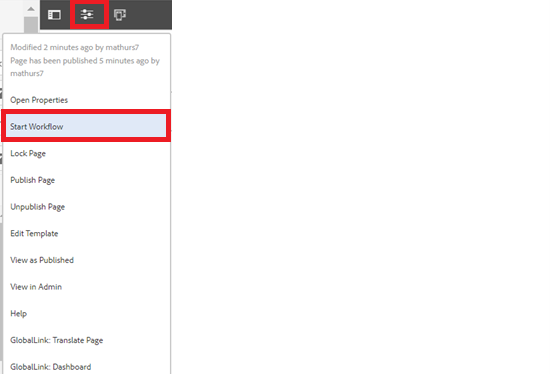
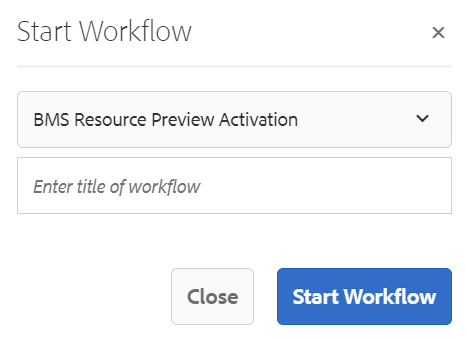
Step 5: After authoring all the fields, start workflow as shown below.
Example : Summary Component
If you have advanced melanoma, a number of healthcare professionals will be involved in your care. This is known as a multidisciplinary team (or MDT)
