
Steps to Author Page Not Found Component
Step 1: Click on "Drag Components Here," and click on + icon to add the component on the page.

Page Not Found





Steps to Author Page Not Found Component
Step 1: Click on "Drag Components Here," and click on + icon to add the component on the page.

Step 2: Search and select Page Not Found component from dropdown list and then drag and drop it onto the desired location on the page.

Step 3: Click on the configure icon to configure the component.

Step 4: Author the properties tab as shown.


Authoring Fields
| Authoring Field name | Description |
| Variation1 | |
| Properties tab | |
| Title | It will be title authoring field to display the text.
|
| Text | It will be text authoring field to display the text.
|
| Background Color | Color picker field to author Background color for Error page |
| Button Label | This is a text authoring field to author the text on the button. |
| Button Link | This is path field to author URL where redirection should happen. Links should start with http:// or https:// |
| Aria Label | This is text authoring field to author aria label. |
| Override Image | Image can be authored from dam that needs to be displayed. Default image will be displayed, if image not authored. |
| Alt Text | This is text authoring field to author Alt text for image. |
| Variation2 | |
| Title | It will be title authoring field to display the text.
|
| Text | It will be text authoring field to display the text.
|
| Enable search | Checkbox field if enabled search component will be enabled (Note: Search component should be authored for search functionality to work.) |
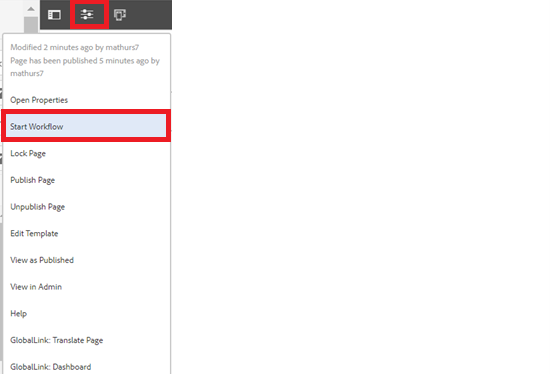
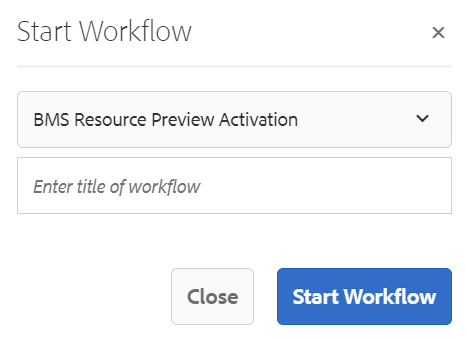
Step 5: After authoring all the fields, start workflow as shown below.
Desktop View:
Last updated: August 15, 2023

404
The page you are trying to access is not available