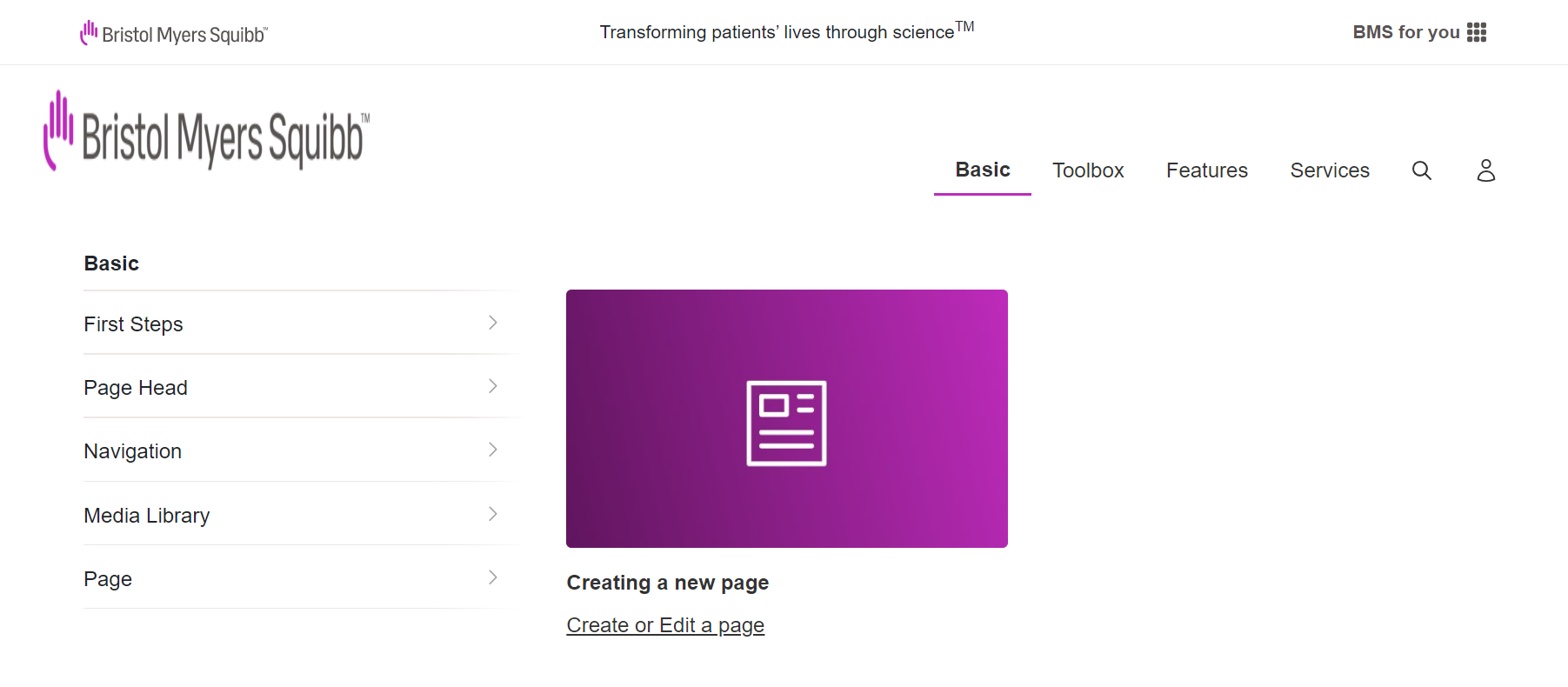
Step 1: To author main navigation component, we need to configure this component on locale page.
Main Navigation Component

Main Navigation Component





The row below the Universal Navigation is the Main Navigation Component row, which contains from left to right the brand logo, the main navigation, the search, and, if supported by the site, the login.
Step 1: To author main navigation component, we need to configure this component on locale page.
Step 2: Click on the highlighted icon to configure the main navigation component.

Step 3: Authoring of main navigation—link, menu link title, description, card path1, card path2, sub navigation links—need to be configured.

| Authoring Field | Description |
| Variant Type-Flat | This variation is ideal when we do not have too many Navigation links to be authored. First and Second Level links will be shown in Main Navigation. Third level link will be shown in Secondary Navigation |
| Variant Type-Flyout | In this variation child navigations will be disabled. Only sub-navigations can be authored. First and Second Level links will be shown in Main Navigation. Third level link willl be shown in Secondary Navigation |
| Variant Type-Flyout slide | Child navigations can also be authored in this variation along with sub-navigations. First, Second and Third Level links will be shown in Main Navigation. Fourth level link willl be shown in Secondary Navigation |
| Variant Type-Flyout slide dynamic | In this variation . First, Second and Third Level links can be authored , immediate sub pages can be driven hierarchically for navigation. |
| Variation Type-Flat Dynamic | In this variation . First, Second and Third Level links can be authored , immediate sub pages can be driven hierarchically for navigation. UI is same as existing flat variation |


Authoring fields:
| Field name | Description |
| Link | Link should be authored in this field where user should redirect to upon clicking the title text. |
| Enable flag | This checkbox serves as flag for whether the link should be enabled in menus or hidden. |
| Menu link title | This is a text authoring field to author title for the menu. |
| Description | This is a text authoring field to author title for the menu. |
| Card path 1 | Path browser field authored page path will be displayed as a card1. |
| Card path 2 | Path browser field authored page path will be displayed as a card2. |
| Second level links | |
| Link | Link should be authored here where user should be redirected to on the click of menu authored. |
| Enabled flag | This checkbox serves as flag for whether the link should be enabled in menus or hidden. |
| Menu link title | This is a text authoring field to author title for the menu. |
| Description | This is a text authoring field to author description for the menu. |
| Card path 1 | Path browser field authored page path will be displayed as a card for second level links (Note: If card path is not autored then card will be rendered from first level links card path .) |
| Add button | Click on add button if more navigations are required. |
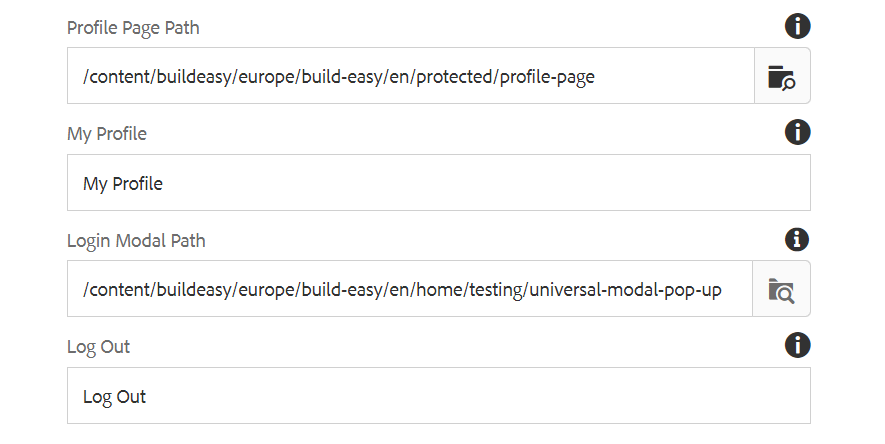
| Profile Page Path | This is a path authoring field to author the link which needs to redirected on click of the link label |
| My profile | This is a text authoring field to author my profie lable for profile page path |
| Login Modal Path | This is a path authoring field to author the link which needs to redirected on click |
| Log Out | This is a text authoring field to author label for the Log Out. |
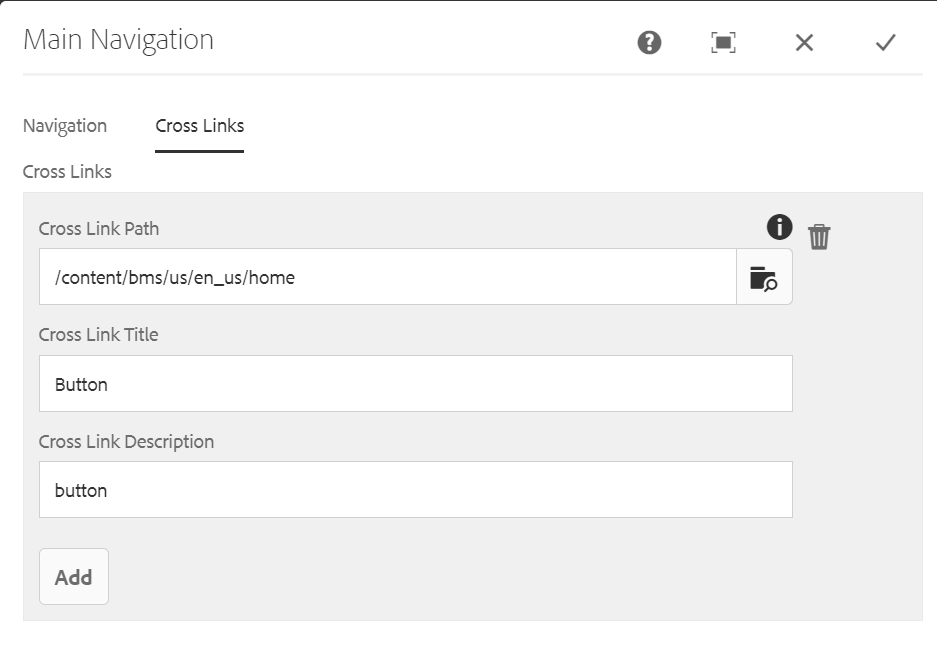
| Cross Links | |
| Cross link path | This is a path authoring field to author the link which needs to redirected on click of the link label |
| Cross Link Title | This is a text authoring field to author title for the Cross link menu. |
| Cross Link Description | This is a text authoring field to author description for the Cross link menu. |
Flyout Slide Dynamic Variation

Authoring fields: Flyout Slide Dynamic
| Field name | Description |
| First level links | |
| Link Text | This is a place holder text authoring field to author Link text for the menu. |
| Link | Link should be authored in this field where user should redirect to upon clicking the Link text. |
| Open In new window | This is a checkbox field, if enabled link will be opened in a new window. |
| Hierarchically Take Sub Pages | This is a checkbox field, if enabled immediate sub pages will be driven hierarchically for navigation. |
Flat Dynamic Variation


Authoring fields:
| Field name | Description |
| Main Navigation Links | |
| First Level Links | |
| Link Text | Text authoring field to author text for the links. |
| Aria Label | Text authoring field to author aria label for link |
| Link | Link should be authored in this field where user should redirect to upon clicking the Link text. |
| Open In new window | This is a checkbox field, if enabled link will be opened in a new window. |
| Hierarchically Take Sub Pages | This is a checkbox field, if enabled immediate sub pages will be driven hierarchically for navigation. |
| Second Level Links | |
| Link Text | Text authoring field to author text for the links. |
| Aria Label | Text authoring field to author aria label for link |
| Link | Link should be authored in this field where user should redirect to upon clicking the Link text. |
| Open In new window | This is a checkbox field, if enabled link will be opened in a new window. |
| Hierarchically Take Sub Pages | This is a checkbox field, if enabled immediate sub pages will be driven hierarchically for navigation. |
| Third Level Links | |
| Link Text | Text authoring field to author text for the links. |
| Aria Label | Text authoring field to author aria label for link |
| Link | Link should be authored in this field where user should redirect to upon clicking the Link text. |
| Open In new window | This is a checkbox field, if enabled link will be opened in a new window. |
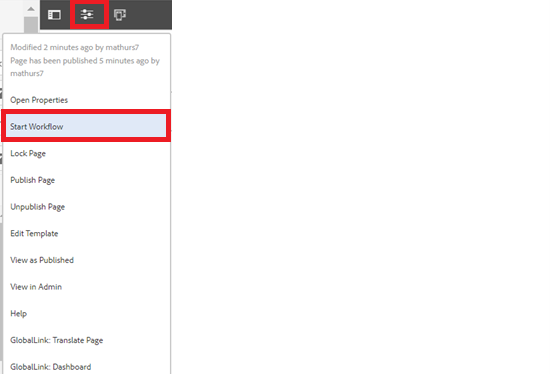
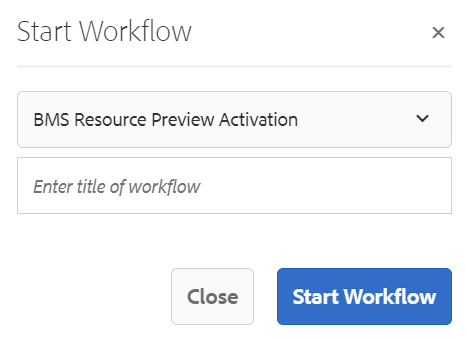
Step 4: After authoring all the fields, start workflow as shown below.
Desktop view:
Last updated: August 15, 2023