
Step 1: Navigate to the page where you want to add the component. Click on "Drag components here" and click on + to add the component on page.
Facts and Figures Component

Facts and Figures Component





Step 1: Navigate to the page where you want to add the component. Click on "Drag components here" and click on + to add the component on page.

Step 2: Search and select facts and figures component from dropdown list and then drag and drop it onto the desired location on the page.

Step 3: Once the component is added, you can configure it by selecting configure icon as showcased in below image.

Step 4: In the component configuration dialog, you can author the Text tab and Items tab.


Authoring Fields
| Field | Description |
| Text tab | |
| Title | This is a text authoring field to author title text. Superscript, subscript, and footnotes are supported. |
| Subline | This is a text authoring field to author subline text. Superscript, subscript, and footnotes are supported. |
| Items tab | |
| Show information | Show information is available in two different options.
|
| Title | This is a text authoring field to author items title text. Superscript, subscript, and footnotes are supported. |
| Image | This is a path authoring field to author the image from dam. |
| Image alt text | This is a text authoring field to author the alternative text for the image. |
| Figure | This is a text field to author numeric figure. It display figures when information type is figures. |
| Denotation Label | This is a text authoring field to author the denotation label text. It display denotation label when information type is figures. |
| Denotation Position | Denotation position is available in two styles.
|
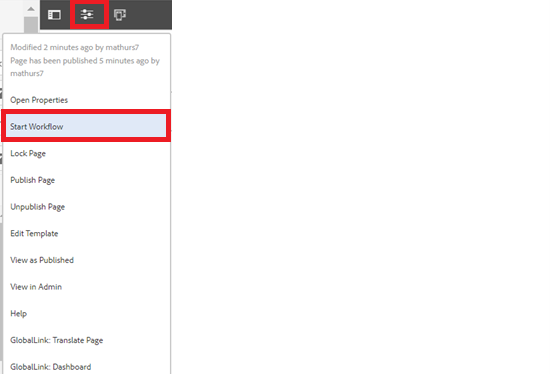
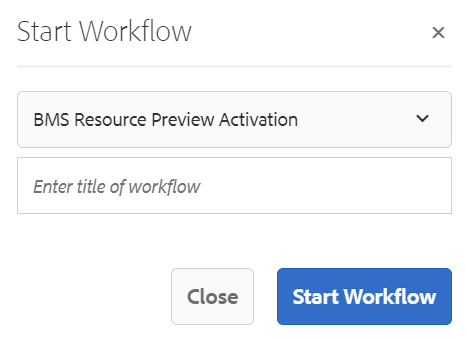
Step 5: After authoring all the fields, start the workflow as shown below.
Desktop View:
Show Information: Display Images
Facts and Figures Title Field
Subline Text

Item Title 1

Item Title 2

Item Title 3

Item Title 4
Show Information: Display Figures
Facts and Figures Title Field
Subline Text
Item Title 1
Item Title 2
Item Title 3
Item Title 4
Mobile View:
