Intake Form
Intake Form
Intake Form
Intake Form
Intake Form

The main navigation can handle up to three levels of page hierarchy. However, larger portals may require additional levels, and this is where the Secondary Navigation comes in handy.

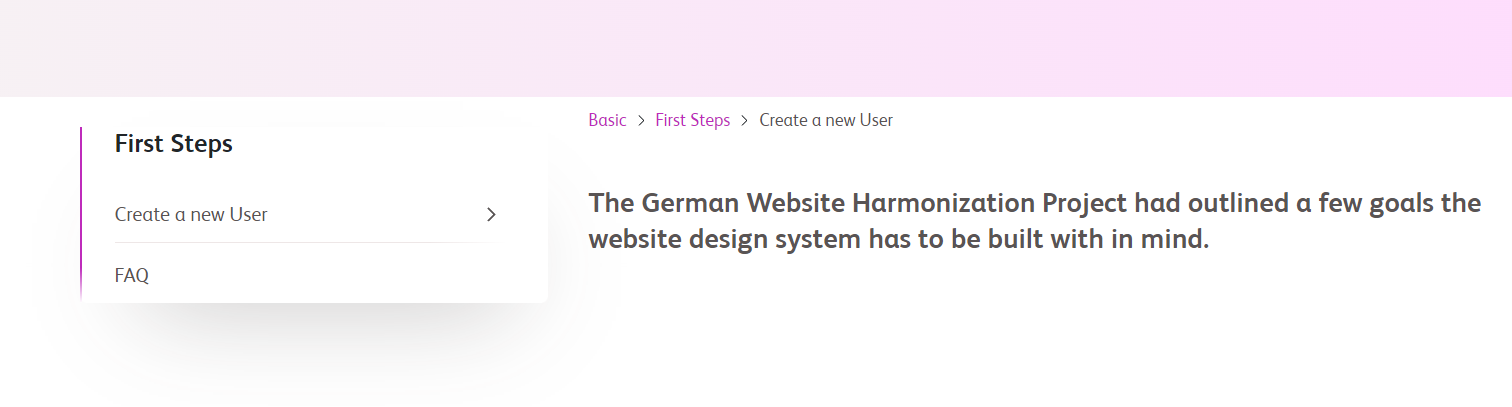
The Secondary Navigation is a vertical navigation that is positioned to the left in the page header. It always follows the website's navigation hierarchy and is associated with a single element in the main navigation.

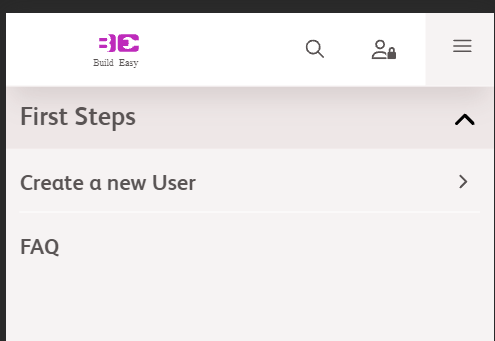
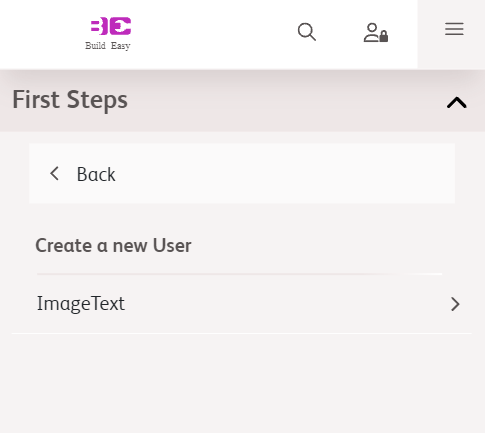
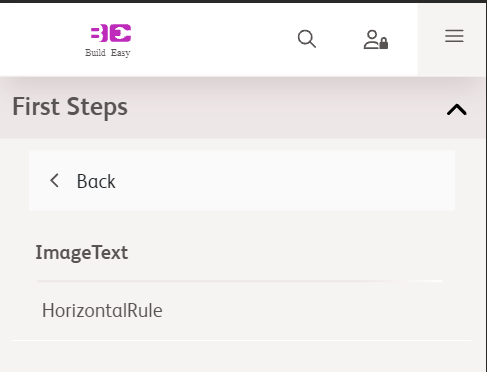
The title of a Secondary Navigation is always the same as its parent element in the main navigation. On tablets and mobile devices, the Secondary Navigation is condensed to show only its title. When clicked, the navigation expands downward, behaving and appearing the same as it does on desktop devices.

If the navigation height exceeds the height of the page head, content elements are pushed to the right if necessary to give the navigation room. However, such long navigations should be avoided.
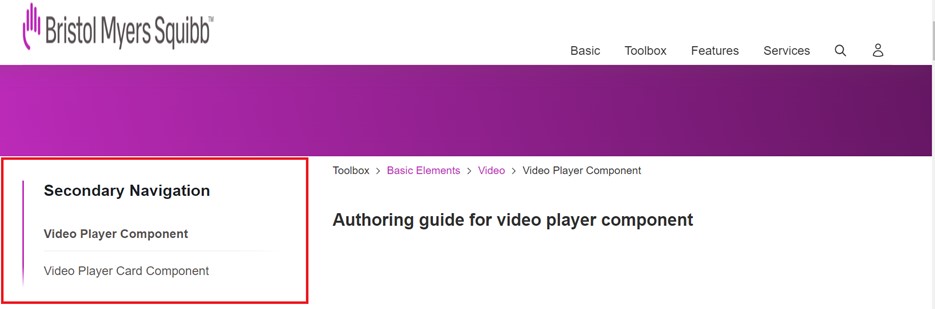
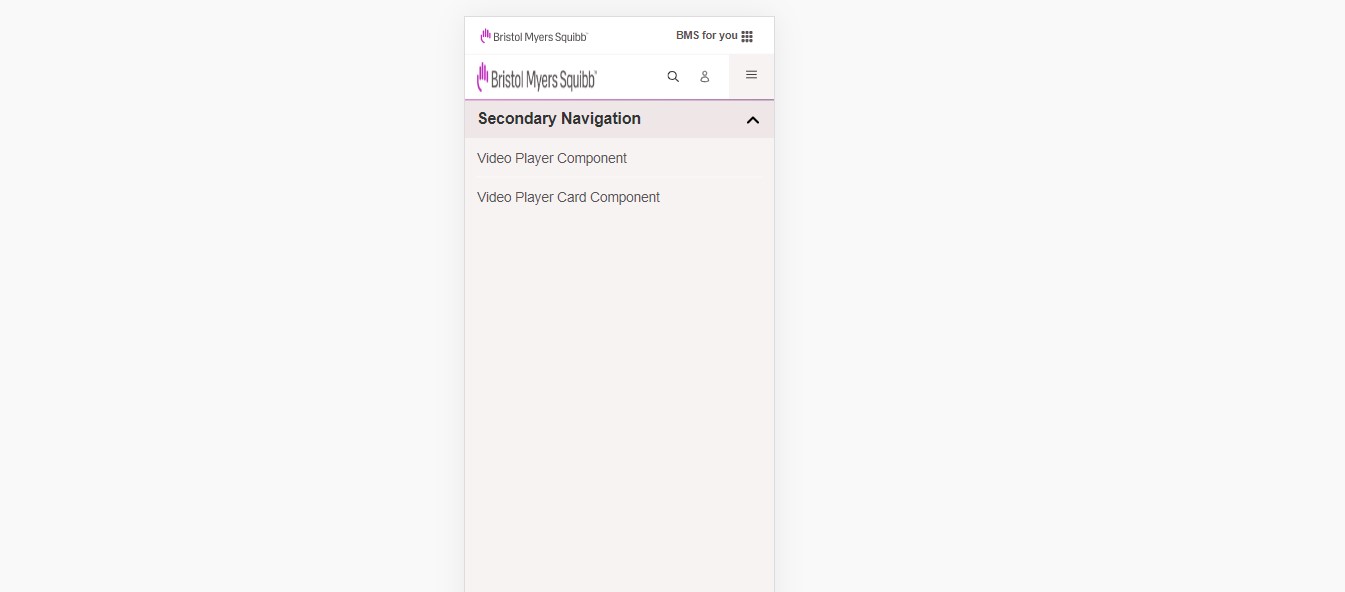
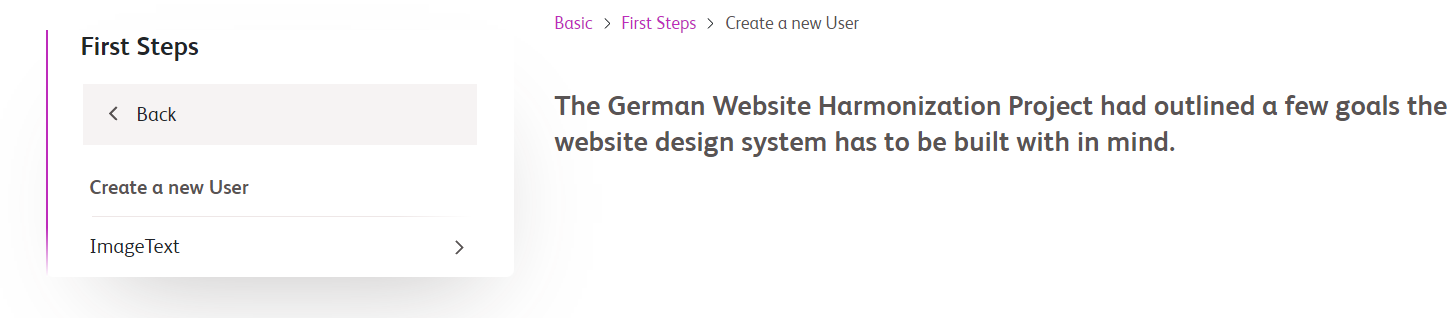
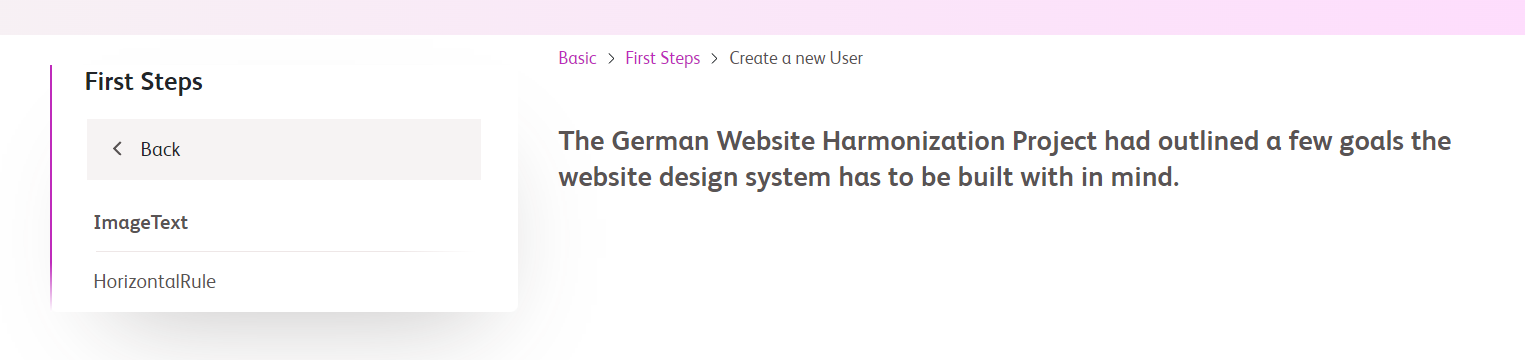
The Secondary Navigation may have a hierarchy. If an element has children, it’s indicated by a caret, as seen in the main navigation pattern. When clicking onto such navigation element the navigation swipes to the child level. In any child level a “back” link to navigate into a higher hierarchy is shown. Starting from the second child level the back link shows a “Back to xxx” where “xxx” is the navigation element that will open the child.

On clicking onto a navigation link the new page is loaded. The Secondary Navigation opens in the page hierarchy, highlighting the active page in the navigation.

SecondaryNav

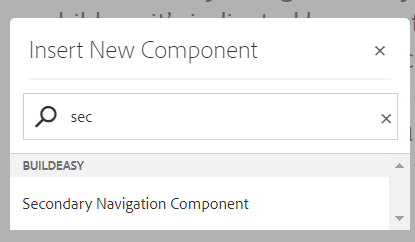
If we want to author Secondary Navigation as a stand-alone component inside responsive column-control component, we can disable the secondary navigation dispayed by page head component and add it from the components. We just need to drag and drop the component and secondary nav will populate based on the Main Navigation Component Authoring for up to six levels (including main nav levels) authored there.
If we want custom navigation, not to render from main nav then author secondary navigation component dialog.

Authoring fields: 

Field name Description
Secondary Navigation  
Back Button Text Text authoring field to author label text for button.
Title Text authoring richtext field to author title for secondary navigation
Secondary Nav Dropdown Checkbox field if enabled secondary navigation links will be displayed as dropdown
Background Color Colorpicker field selected color will be applied as background color for secondary navigation
Title Color Colorpicker field selected color will be applied to title text.
Secondary Navigation Links  
Link Text  Text authoring field to author text for the links.
Aria Label Text authoring field to author aria label for link
Link Link should be authored in this field where user should redirect to upon clicking the Link text.
Open In new window This is a  checkbox field, if enabled link will be opened in a  new window.
Hierarchically Take Sub Pages This is a checkbox field, if enabled immediate sub pages will be driven hierarchically for navigation.
Secondary Navigation Links  
Link Text  Text authoring field to author text for the links.
Aria Label Text authoring field to author aria label for link
Link Link should be authored in this field where user should redirect to upon clicking the Link text.
Open In new window This is a  checkbox field, if enabled link will be opened in a  new window.
Hierarchically Take Sub Pages This is a checkbox field, if enabled immediate sub pages will be driven hierarchically for navigation.
Child Navigation Links  
Link Text  Text authoring field to author text for the links.
Aria Label Text authoring field to author aria label for link
Link Link should be authored in this field where user should redirect to upon clicking the Link text.
Open In new window This is a  checkbox field, if enabled link will be opened in a  new window.

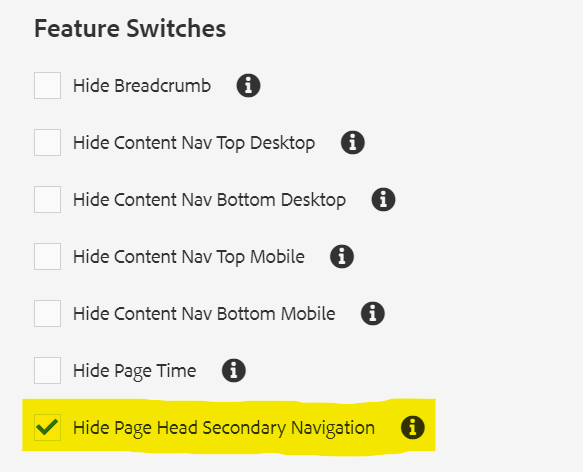
 To disable the secondary navigation displayed by pagehead component, Navigate to page properties Additional Configurations Enable Hide Page Head Secondary Navigation as shown 

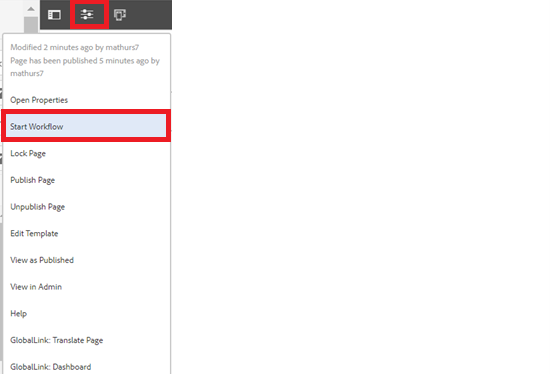
After authoring all the fields, start the workflow as shown below.

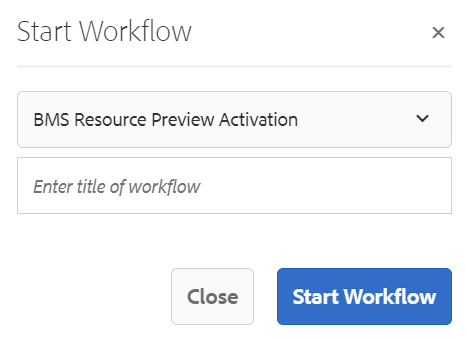
  • Select BMS Resource Preview Activation from the dropdown.
  • Author can select appropriate title for the workflow and click on start workflow.
  • This will publish the page in preview environment and reviewers can review the page in preview instance.

Desktop View