Intake Form
Intake Form
Intake Form
Intake Form
Intake Form

Step 1: Authoring Content Fragment 
To use Events component, Events Content fragments and tags need to be authored.
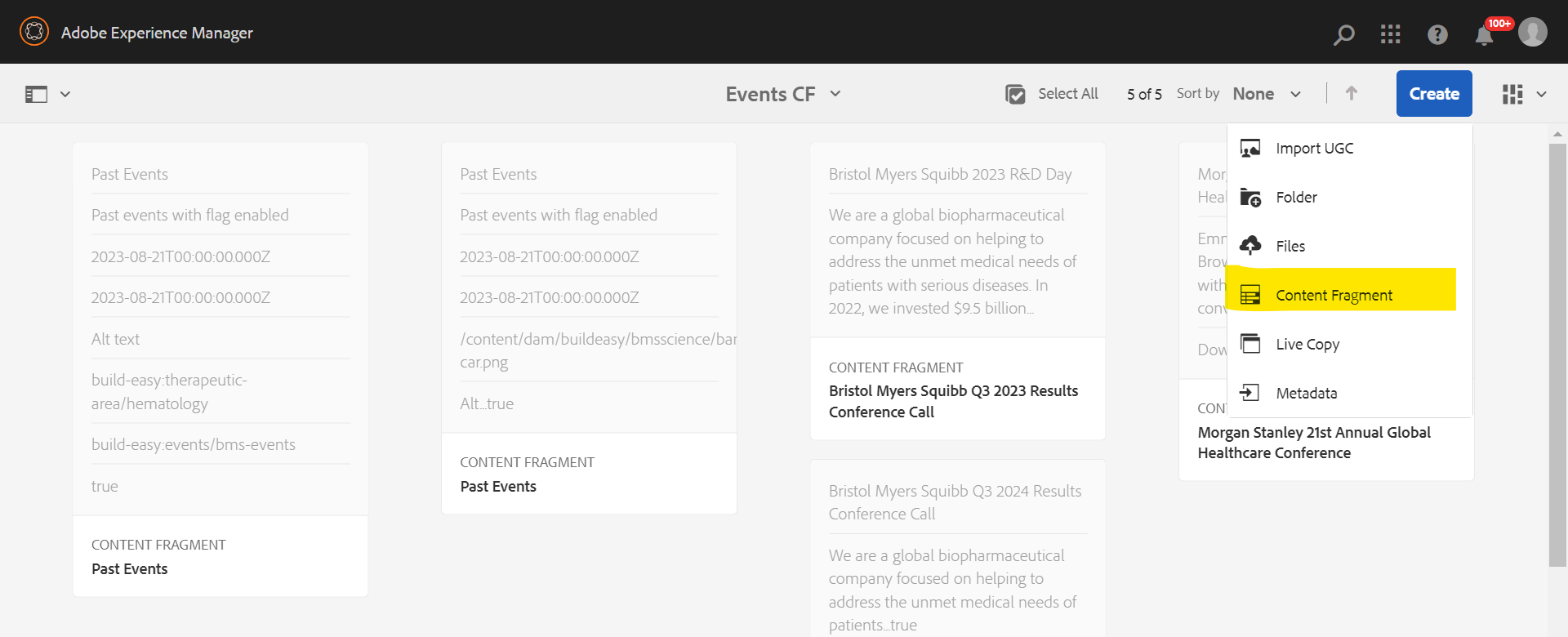
A content fragment can be created in the dam by clicking “create” in the respective folder for events and then select content fragment

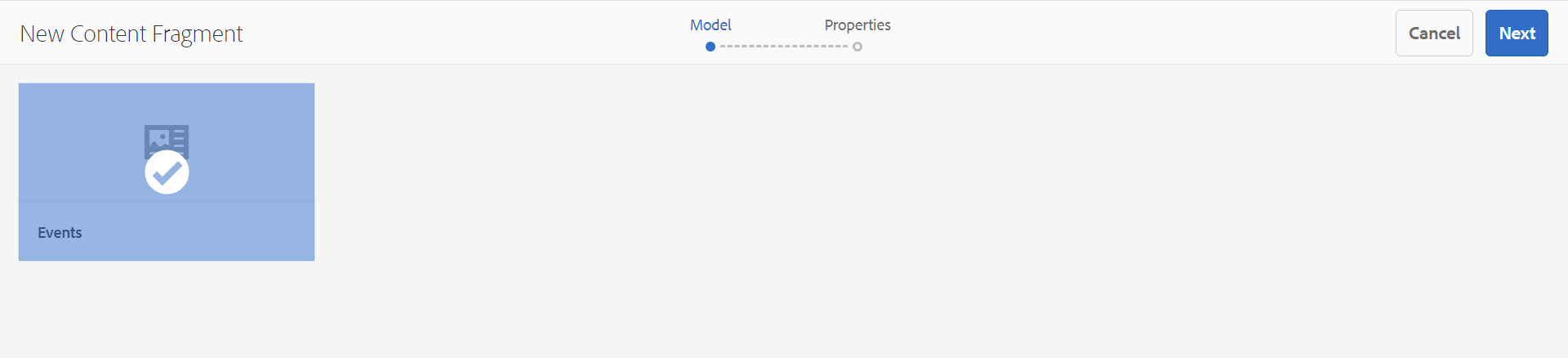
Step 2: Search and select the “Events” model from the available models.

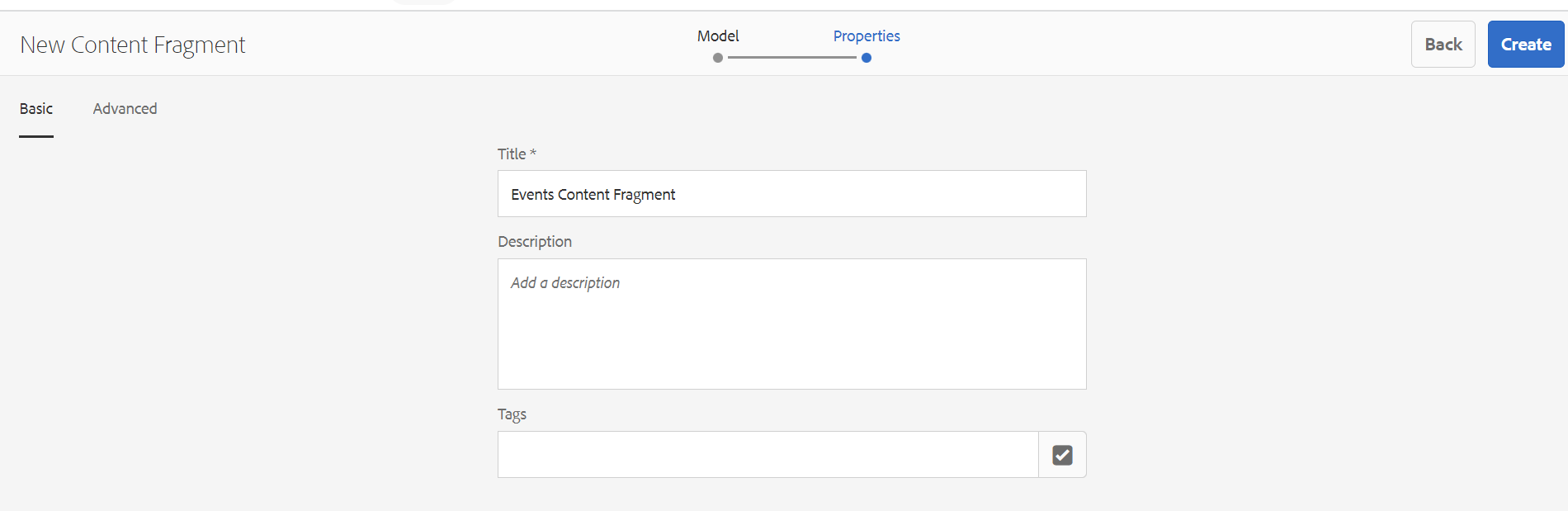
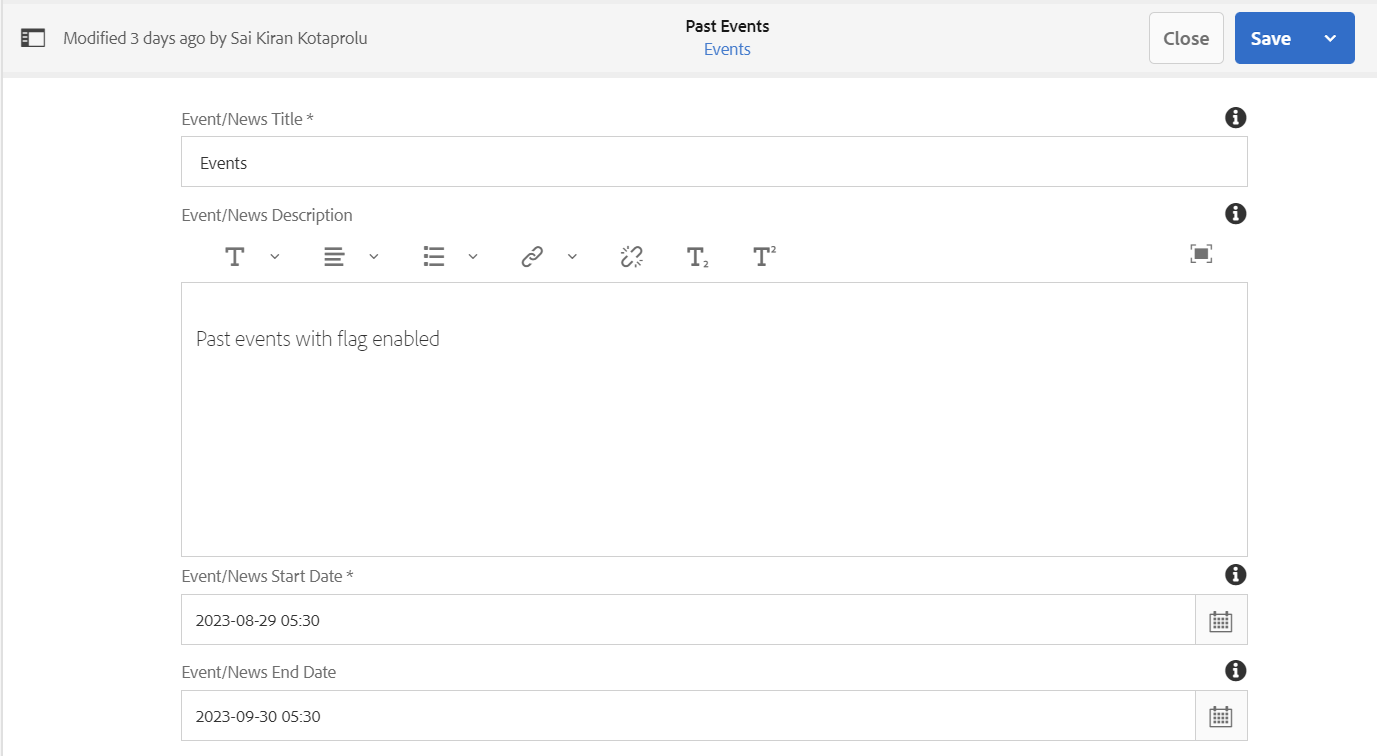
Step 3: Click on next and author the properties. Below is a reference. Next click on create 

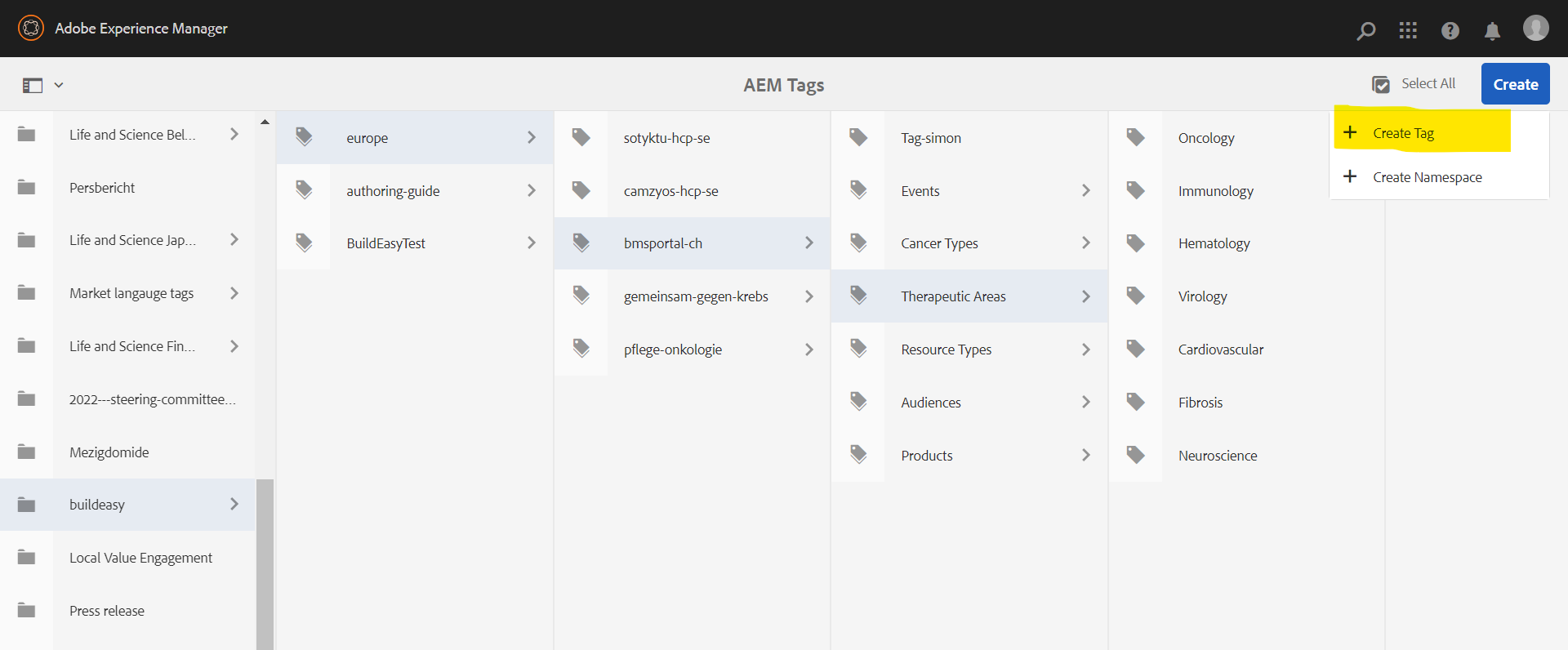
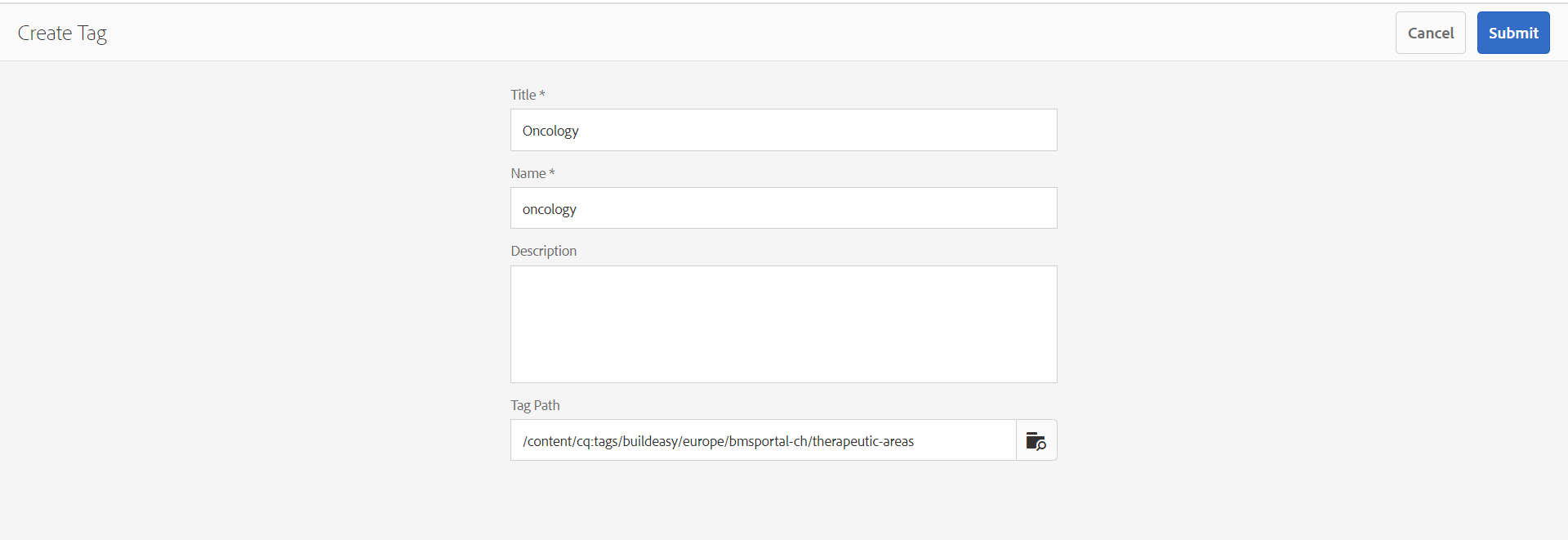
If any new tags are required, they can be authored Similarly for the respective site structure. 

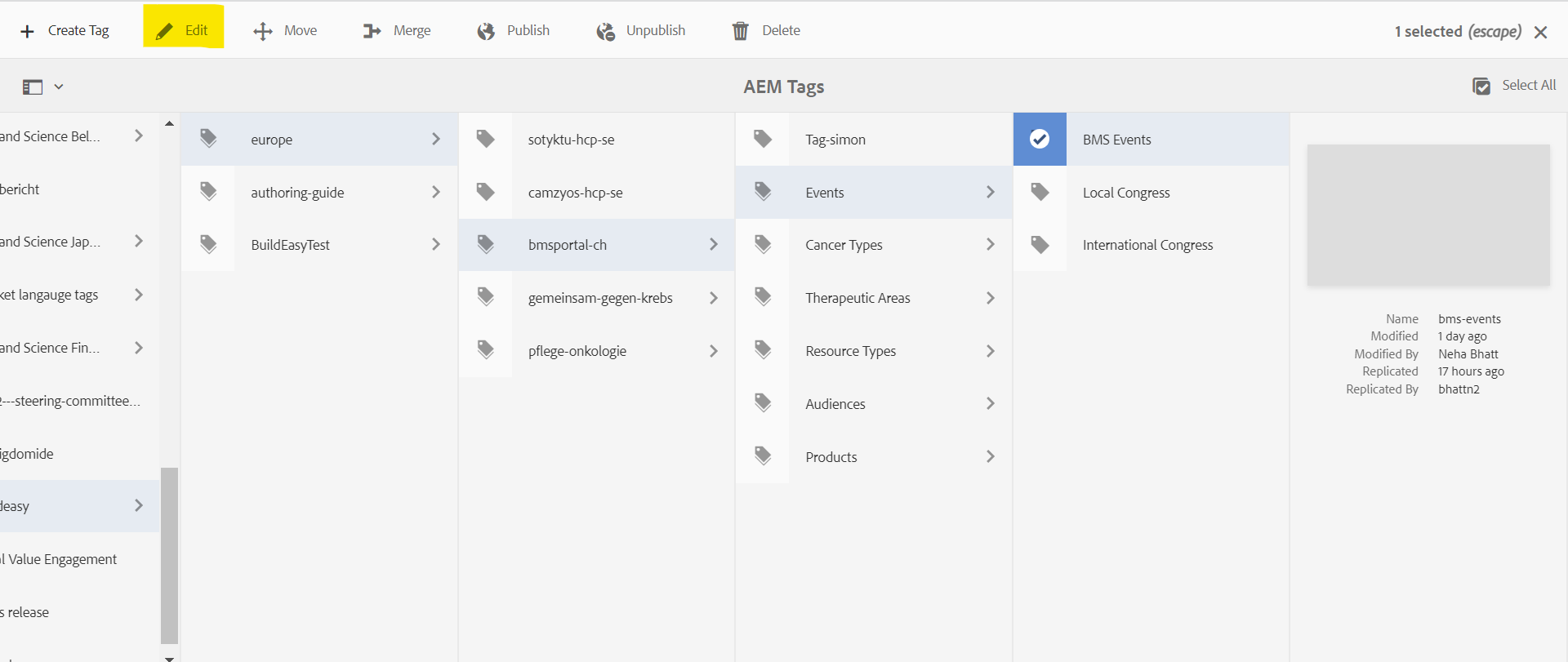
Author can navigate here and find thier site node name in AEM Tags to see entrie list which is avilable for your site. Add/Edit existing tag which required for the site.


Author the properties for the tag and save it,  Authored tags can be used while authoring events.

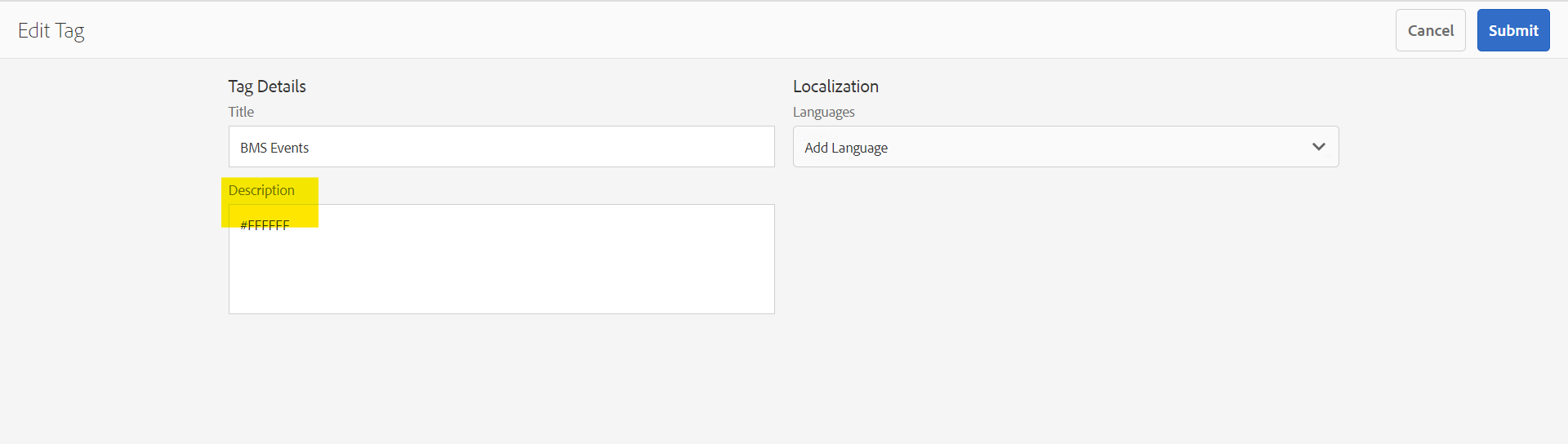
Tag color can be authored only for Event Type tags, By navigating to tag structure select tag and Click on edit.

Author description with HEXA Color code as shown.

Step 4: Open and Author Events Properties. Please author only “Master” variation and do not author any other variations in content fragment.

Step 5: Author all the required fields and information related to Events.

Authoring Fields : Events Content Fragments


Fields Description
Settings tab  
Events/News Title This is a text authoring filed to author the title text.
Event/News Description

This is a rich text authoring filed to author the description text.

  • Text can be aligned(left,center,right)
  • Lists and hyperlinks can be added 
  • Superscript, Subscript are supported.
  • If the user wants to have space within the lines, then while inserting text “ENTER” can be used. This will insert a <p> tag in rich text.
  • If the user wants to have no space within the lines, then while inserting text “SHIFT + ENTER” can be used. This will insert a <br> tag in rich text with no extra space.
Event/News Start Date Date picker field to author start date for Events, Date should be authored 24 hours Format.
Note : Date will be displayed as authored in the field.
Event/News End Date Date picker field to author end date for Events, Date should be authored 24 hours Format.
Note : Date will be displayed as authored in the field.
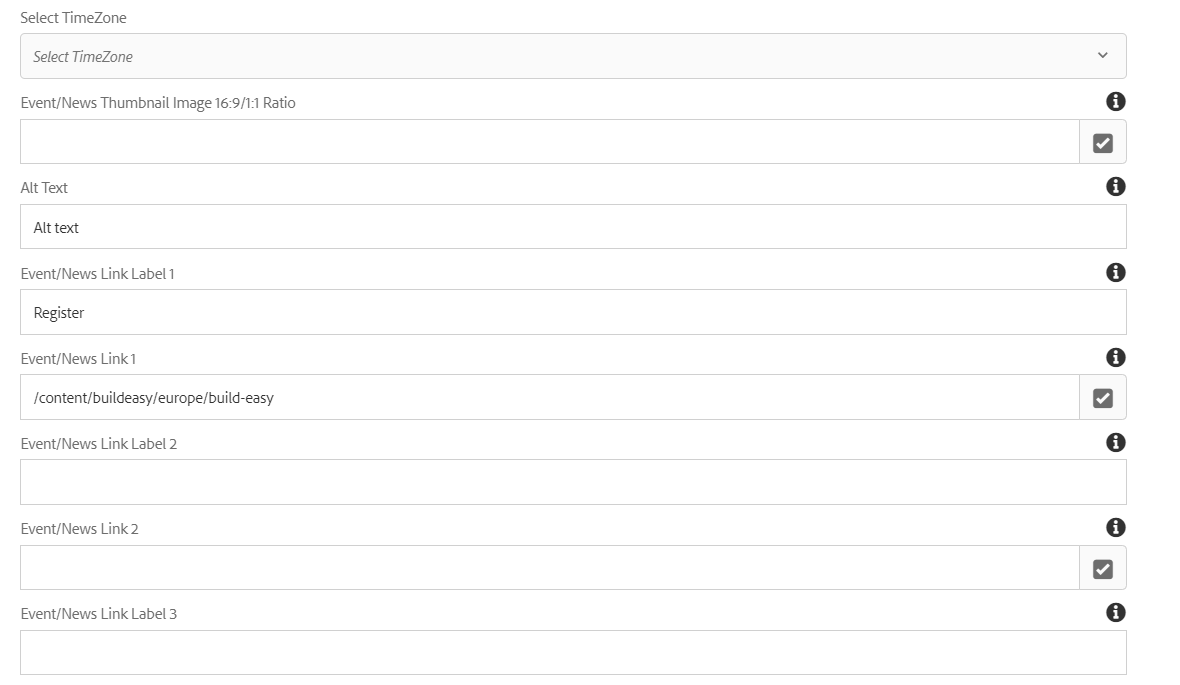
Select TimeZone Checkbox field to select the time zone to be displayed on page
A new checkbox is added in locale to display time zone on page. By default, timezone will not be displayed. Timezone will only be displayed when checkbox is checked on locale.
 Note: If timeZone is not selected in locale, the events follow a default timezone of EST for backend sorting and filtering logic.
Event/News Thumbnail Image 16:9/1:1 Ratio Image can be authored from dam that needs to be displayed
Alt Text It will be text authoring field to provide alternative text for the image
Event/News Link Label 1 It will be text authoring field to display the text to the Link  1
Events/News Link 1 This is a path authoring field to author the link which needs to redirected on click of the link label 
Event/News Link Label 2 It will be text authoring field to display the text to the Link  2
Events/News Link 2 This is a path authoring field to author the link which needs to redirected on click of the link label
Event/News Link Label 3 It will be text authoring field to display the text to the Link 3
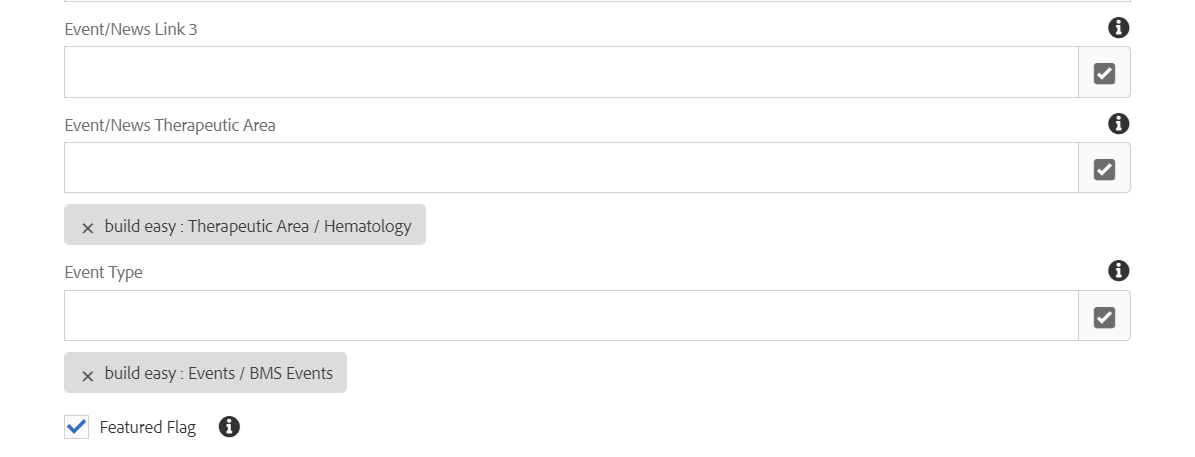
Events/News Link 3 This is a path authoring field to author the link which needs to redirected on click of the link label
Event/News Therapeutic Area This is a tag field to author single or multiple tags, to display and filter the events content fragments
Event Type This is a tag field to author single or multiple tags, to display and filter the events content fragments
Featured Flag Checkbox field enable to have the Events as a featured events.

After authoring all the required fields and information related to Events. publish the content fragment. To publish the content fragment please follow the steps Click here

Steps to author Events Component

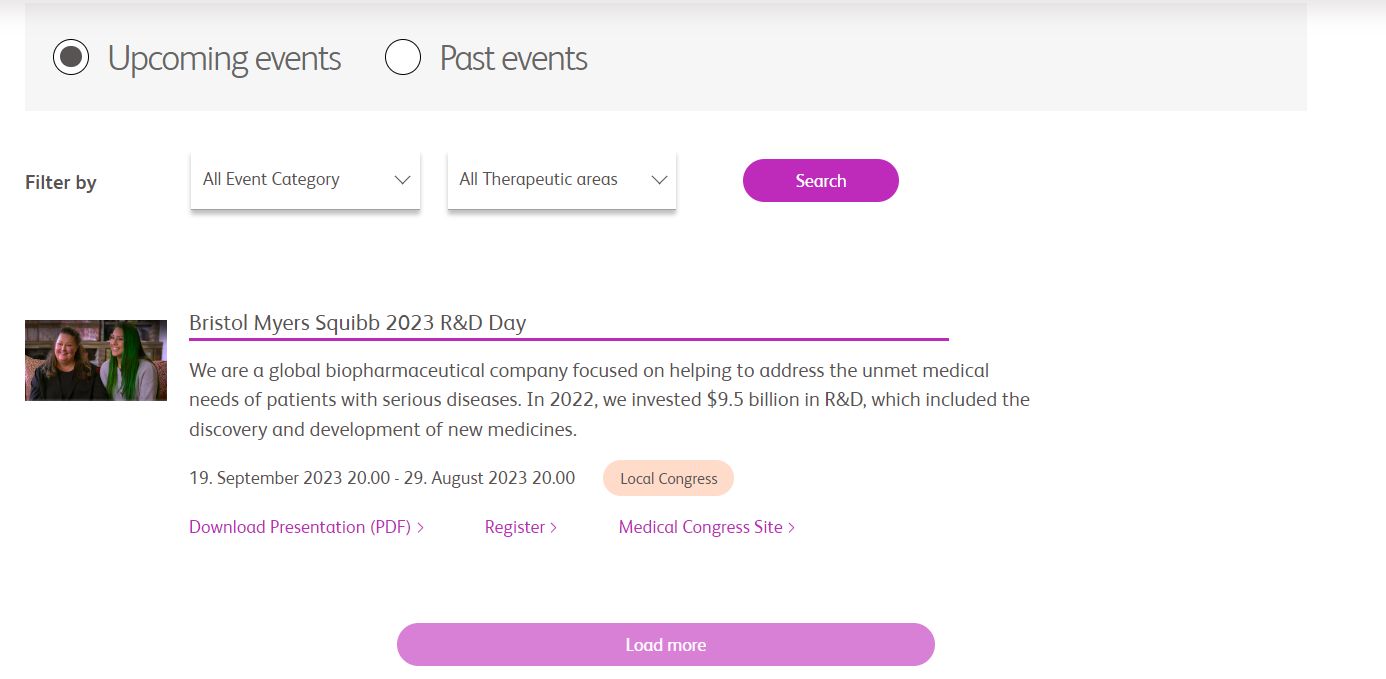
Step 1: Navigate to the page where you want to add the component. Click on "Drag components here" and click on + to add the component on page. 

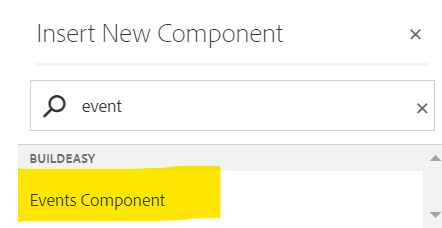
Step 2: Search and select events component from drop-down list and then drag and drop it onto the desired location on the page.

Step 3: Once the component is added, you can configure it by selecting configure icon as showcased in below image.

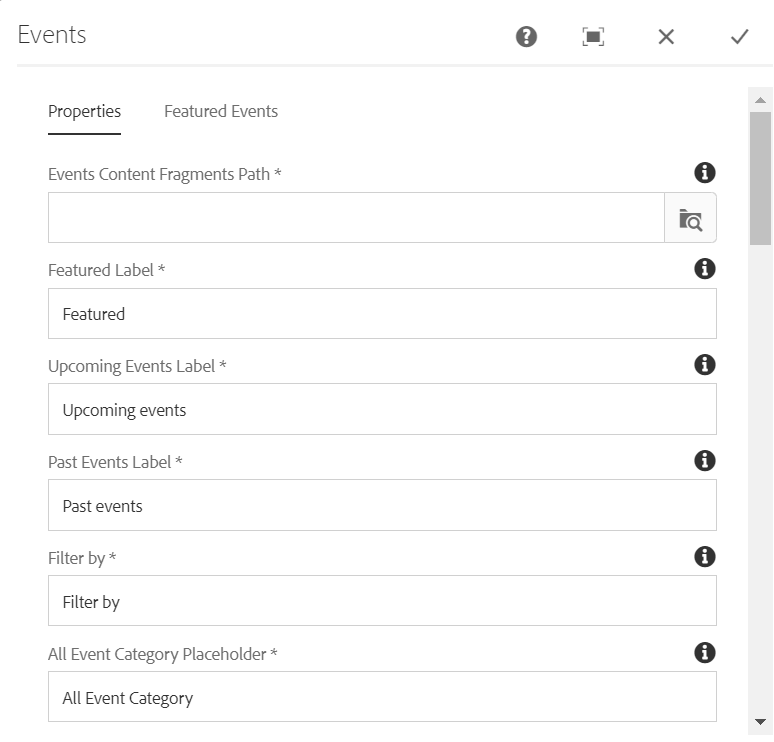
Step 4: In the component configuration dialog, you can author Properties and Featured Events Tabs

Authoring Field's : 

Authoring Field name Description
Properties tab  
Event Content Fragments Path This is a path authoring field to author the path from where events content fragments to be Fetched.
Featured label It will be text authoring  field to display the Featured label
Upcoming Events Label It will be text authoring field to display the Upcoming Events label
Past Events Label It will be text authoring field to display the Past Events label
Filter by It will be text authoring field to display the filter by label
All Events Category Placeholer It will be text authoring field to display the All Events Category filter label
All Therapeutic Area Placeholder It will be text authoring field to display the All Therapeutic Areas filter label
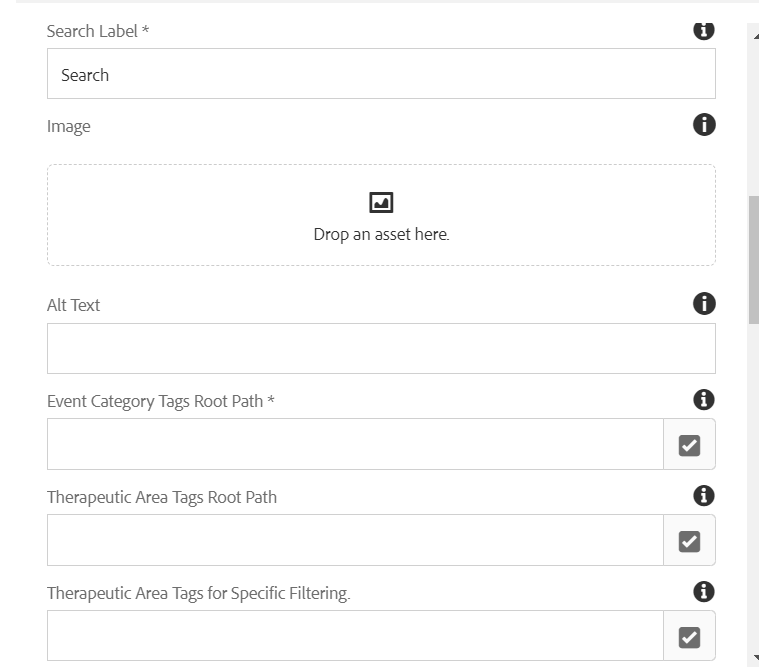
Search Label It will be text authoring field to display the text to the button
 Image  Image can be authored from dam that needs to be displayed, if image not authored in content fragments
Alt text It will be text authoring field to provide alternative text for the image
Events Category Tags Root Path This is a tag field to author tags, to display  Events content fragments 
Therapeutic Area TagS Root Path This is a tag field to author tags, to display  Events content fragments 
Therapeutic Area Tags for Specific Filtering. This is a tag field  for authoring specific tags of therapeutic area to be displayed.
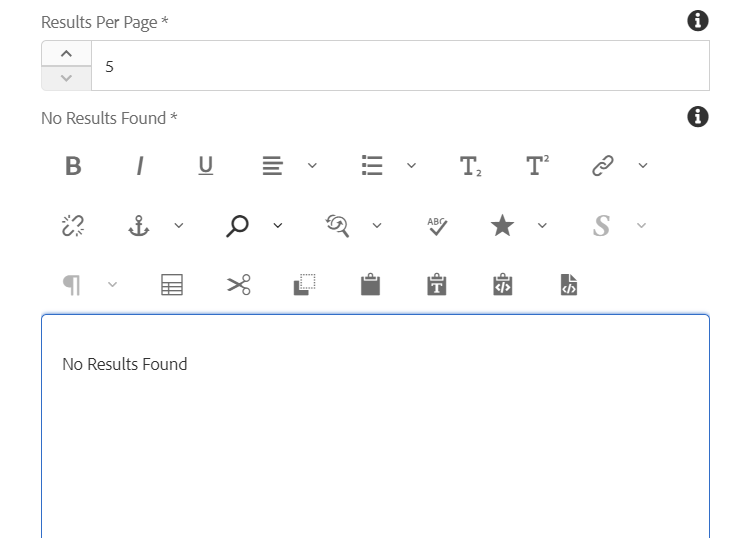
Results Per Page It will be number field authoring  field to display number of events results to be displayed on page
No Results Found It will be text authoring  field to display the text when there is no reults
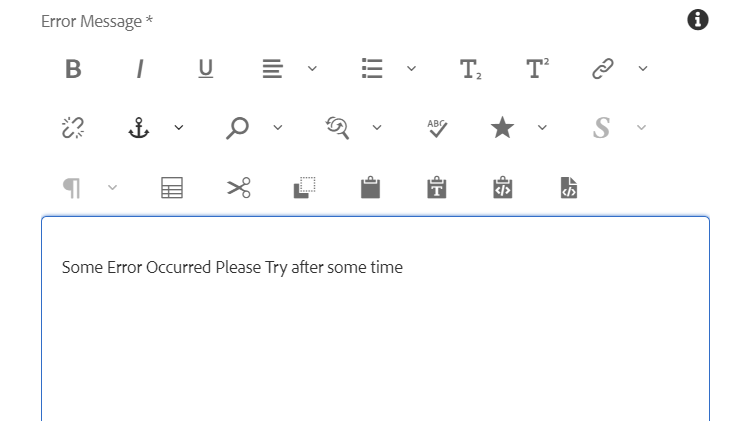
Error Message It will be text authoring  field to display the text 
Load More Label It will be text authoring field to display the text to the button
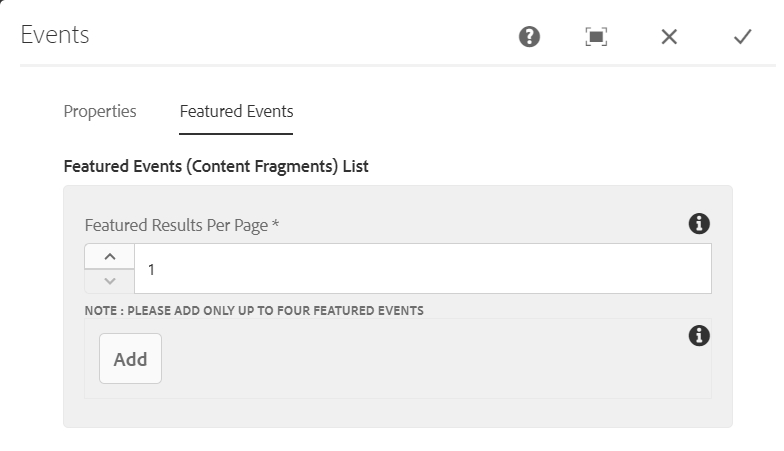
Featured Events tab  
Featured Results Per Page It will be number field authoring  field to display number of featured results to be displayed on page
Featured Events This is a path authoring field to author the path which contains event content fragmens with featured flag enabled(Note : Path browse will be pre populated with path authored in Event Content Fragments Path field)


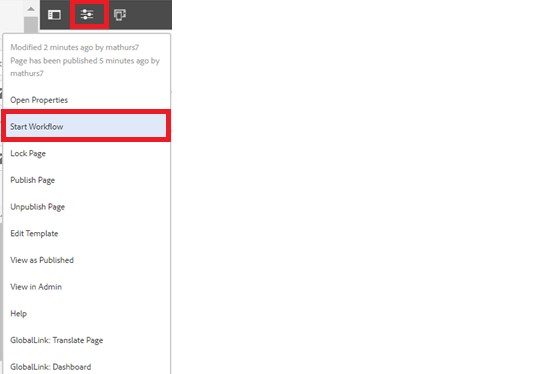
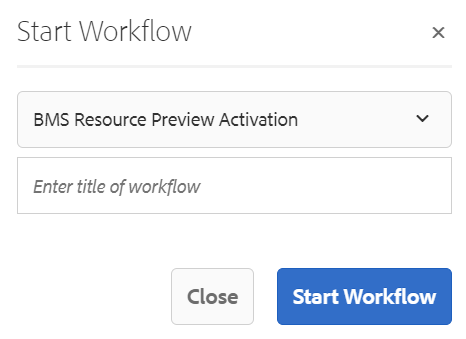
Step 5: After authoring all the fields, start workflow as shown below.

  • Select BMS Resource Preview Activation from the dropdown.
  • We can select appropriate title for the workflow and click on start workflow.
  • This will publish the page in preview environment and reviewers can review the page in preview instance.

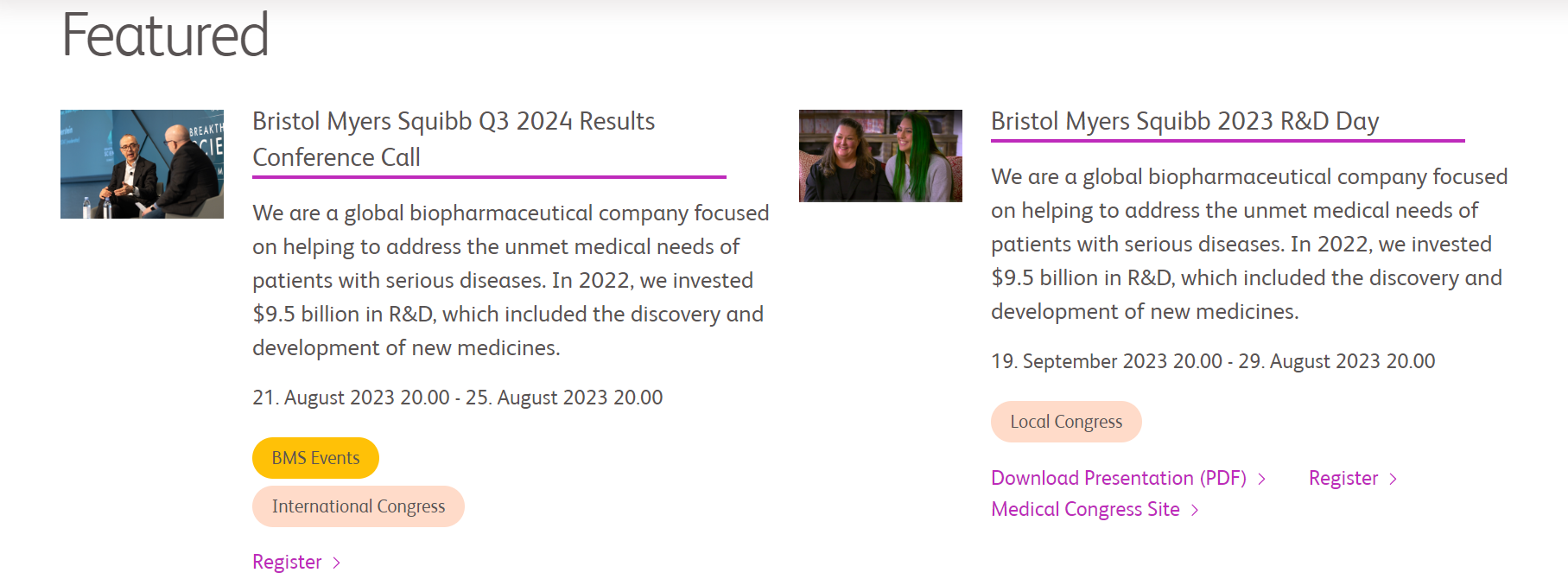
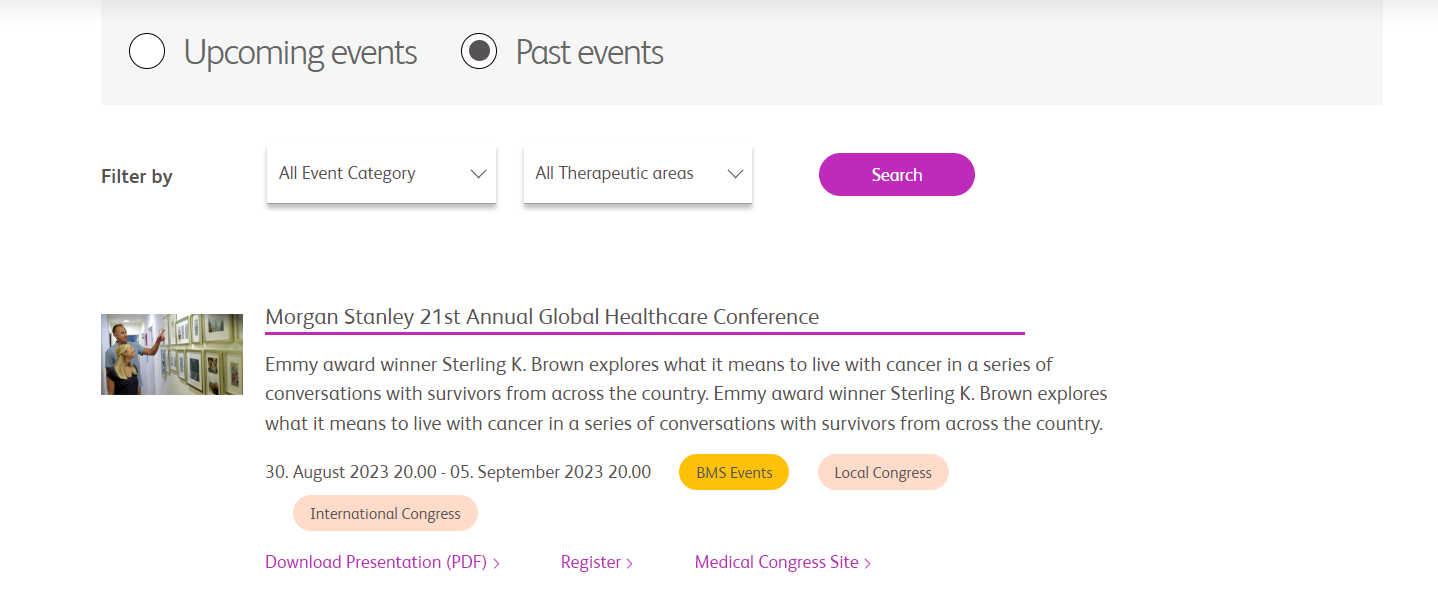
Desktop View: