
Steps to Author Feedback Form Options Component:
Step 1: Click on drag components here, and click on + icon to add the component on page.

Feedback Form Options Component





Steps to Author Feedback Form Options Component:
Step 1: Click on drag components here, and click on + icon to add the component on page.

Step 2: Search and select feedback form options component from dropdown list and then drag and drop it onto the desired location on the page.

Step 3: Click on the highlighted icon to configure the component.

Step 4: Author the feedback form options components as shown below.


Authoring Fields
| Authoring Field | Description |
| Type | It is a dropdown field with four different values 1.Checkboxes 2. Radio Buttons 3.Drop-down 4. Multi-select-drop-down |
| is Rating Type ? | Checkbox for rating |
| Title | Used to describe the role of the field. |
| Name | The name of the field, which is submitted with the form data.Maximum length of this field is 20 characters |
| Source | It is a dropdown field with three different values 1.Local 2. List 3.Datasource and used to provide source of the options. |
| Options | It is a multifield with four fields and used to define the options. For single selection types, the last selected option in the list is selected in the result. |
| Selected | If checked it will select by default value |
| Disabled | If checked it will disabled the the selected option |
| Text | It is used to add text |
| Value | It is used to provide value |
| About | |
| Help Message | A hint for the user of what can be entered in the field. |
| ID | HTML ID attribute to apply to the component |
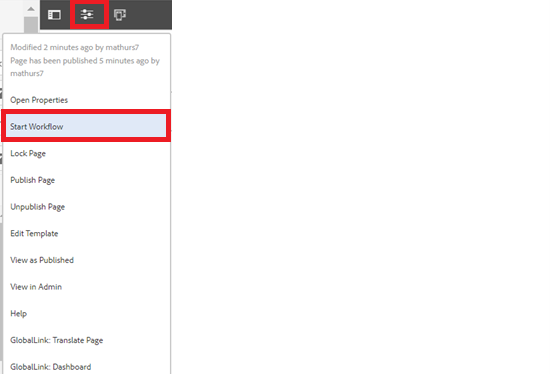
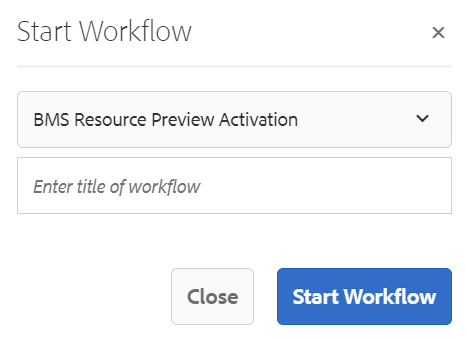
Step 5: After authoring all the fields, start workflow as shown below.
Example : Feedback Form Options components
