Intake Form
Intake Form
Intake Form
Intake Form
Intake Form

Indication Dropdown Component

Step 1: Authoring Indication Dropdown Component
To use Indication Dropdown component, Indication drop down component should be enabled in locale page header component.
Navigate to locale page of the site and edit header component as shown in the below example and  enable Use Indication DropDown checkbox field

Step 2: Once the component is enabled,  In the component configuration dialog, you can author all the required tabs

Authoring Fields


Field Description
Navigation tab  
ID Text authoring field to author HTML ID attribute to apply to the component.
Select DropDown Placeholder Text authoring field to author place holder text for dropdown 
(Note: Text will be displayed only when current page is not in any of the indication dropdown links)
Text Color This is a color picker field to choose text color
Text Hover Color This is a color picker field to choose color for text on hover.
Hover Background Color This is a color picker field to choose color for backround on hover.
Width This is a number field to author width for the dropdown fields
Indication DropDown  
Link Text This is a text authoring field to author link titles
Link This is pathbrowser field to author link, on click it will redirect to authored path.
Description This is a text authoring richtext field to author description text for link.
Aria Label This is a text authoring field to author aria label text for link
Logo This is a pathbrowser field to upload image from dam
Open in New Tab This is a check box field if enabled link will be opened in a new window
Alt text This is a text authoring field to author alttext for image
Has Child This is a checkbox field if enabled sub navigation fields will be enabled 
Sub Navigation Links  
Link Label This is a text authoring field to author link titles
Link This is pathbrowser field to author link, on click it will redirect to authored path.
Open in New Tab This is a check box field if enabled link will be opened in a new window
Aria Label This is a text authoring field to author aria label text for link
Hide Child This is a chekbox field if enabled respective child link will be disabled from the hierarchy

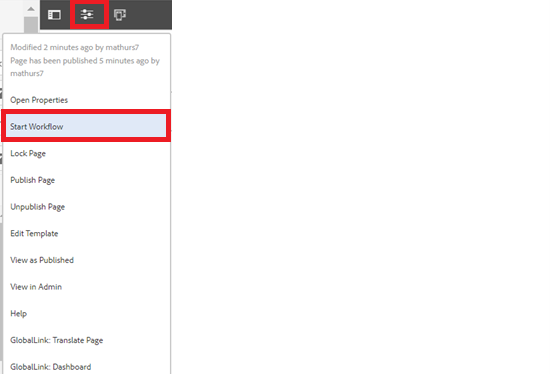
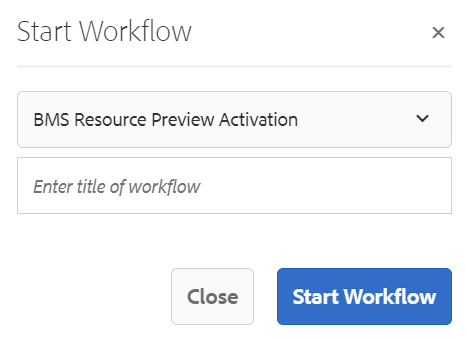
Step 3: After authoring all the fields, start workflow as shown below.

  • Select BMS Resource Preview Activation from the dropdown.
  • Author can select appropriate title for the workflow and click on start workflow.
  • This will publish the page in preview environment and reviewers can review the page in preview instance.

Desktop View: