Intake Form
Intake Form
Intake Form
Intake Form
Intake Form

Top Banner Component

Step 1: Authoring Experience Fragment 
To use Top Banner component, Experience fragments need to be authored.
A experience fragment can be created by navigating to Navigation -> click on Experience fragment as shown in the below example.

Step2: Create experience fragment by clicking “create” in the respective folder  and then select Experience Fragment

Step 3: Search and select the “BuildEasy Experience Fragment ” template from the available templates.

Step 3: Click on next and author the properties. Below is a reference. Next click on create 

Step 4: Select the created experience fragment master click on edit  and author Top Banner component.

step 5. Click on "Drag components here" and click on + to add Top banner component on page. 

Step 6: Search and select Top navigation component from dropdown list and then drag and drop it onto the desired location on the page.

Step 7: Once the component is added, you can configure it by selecting configure icon as showcased in below image.

Step 8: In the component configuration dialog, you can author Color tab.

Authoring Fields


Field Description
Color tab  
Background Color This is a color picker field to choose background color for the component.
Text color This is a color picker field to choose text color
Text This is a richtext authoring field to author  text for the component.

Step 9 To render Top Banner component authored in Experience fragment to page Navigate to locale page properties Build Easy Site Settings and author Top Navigation Configurations. For more information Click Here 
(Note : If user dont want Top banner component to render from locale page for specific Page and subsequent child pages navigate to required page properties and Override Top navigation configuration . For more informantion Click Here)

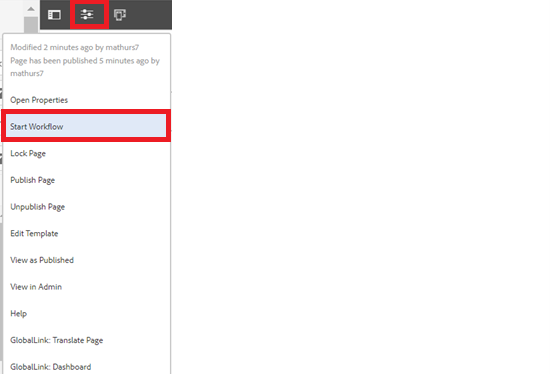
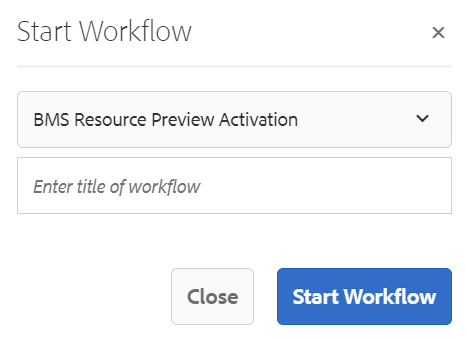
Step 10: After authoring all the fields, start the workflow as shown below.

  • Select BMS Resource Preview Activation from the dropdown.
  • Author can select appropriate title for the workflow and click on start workflow.
  • This will publish the page in preview environment and reviewers can review the page in preview instance.