Intake Form
Intake Form
Intake Form
Intake Form
Intake Form

Step 1: Authoring ToolTip 
To use ToolTip, tooltip page content need to be authored.
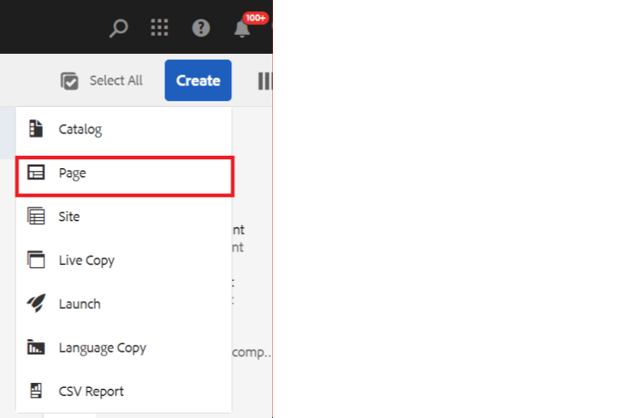
To create a page Click on the Create button on author URL where you want to create page and select page from dropdown.
(Note select only Build easy Tooltip Template to create the page)

Step 2: By default Rich text editor component will be allowed on creation of page. Click on configure button and author the required content for tooltip

Step 3: Navigate to page properties of the created page to author width of the tooltip secion to be displayed in Desktop, Mobile, Tablet as shown in the below example

Step 4: Navigate to locale page properties to author tooltip text color, background color and border color for the tooltip section Click here to refere locale page properties

Step 5: Created tooltip can be used in any of the richtext field 
To use tooltip in any of the component, select the text that should open tooltip upon clicking on the text and select tooltip from style plugin as shown below.

Step 6: Select the same content and link it to a tooltip page path where tooltip content is authored as shown in the below example

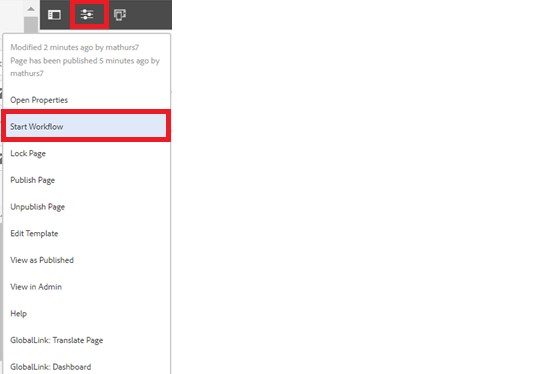
Step 7: After authoring all the fields, start workflow as shown below.

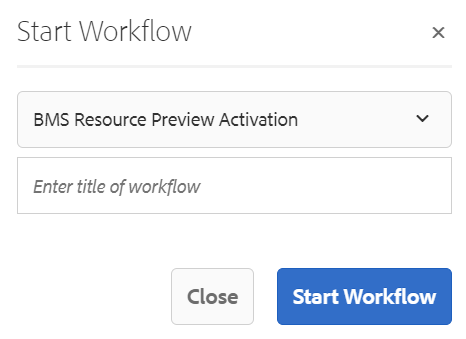
  • Select BMS Resource Preview Activation from the dropdown.
  • We can select appropriate title for the workflow and click on start workflow.
  • This will publish the page in preview environment and reviewers can review the page in preview instance.

Desktop View: