Intake Form
Intake Form
Intake Form
Intake Form
Intake Form

Step 1: Authoring Content Fragment 


To use Resource component, Resources Content fragments and tags need to be authored.
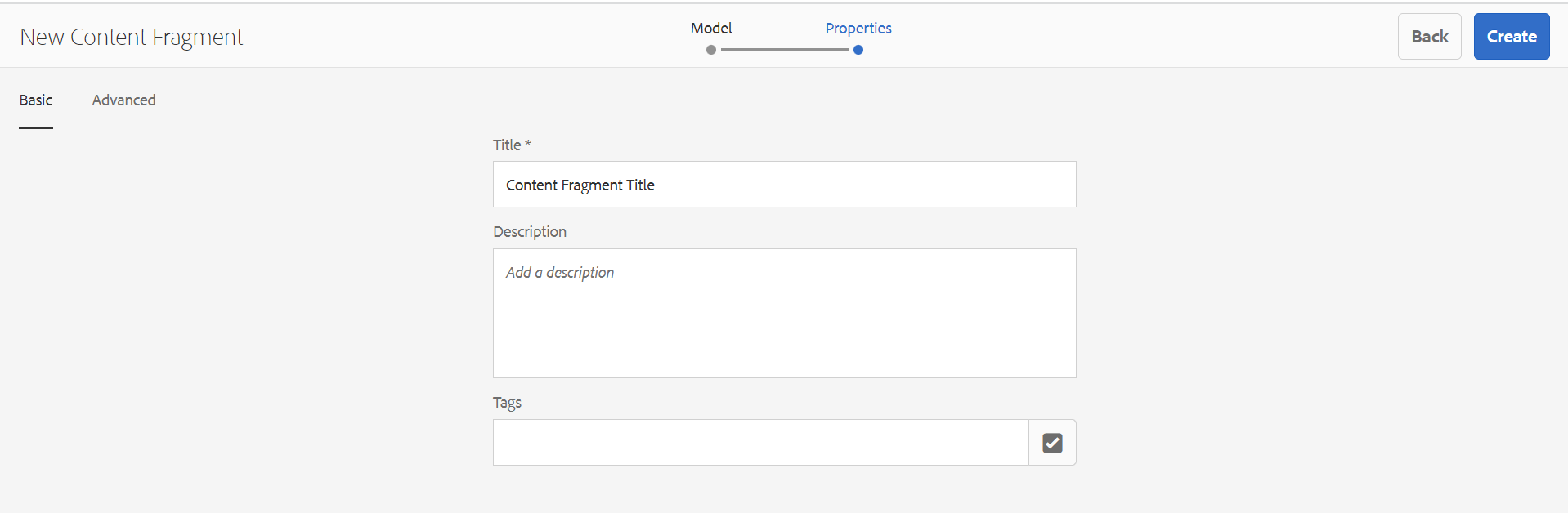
A content fragment can be created in the DAM by clicking “create” in the respective DAM folder for resources and then select content fragment.
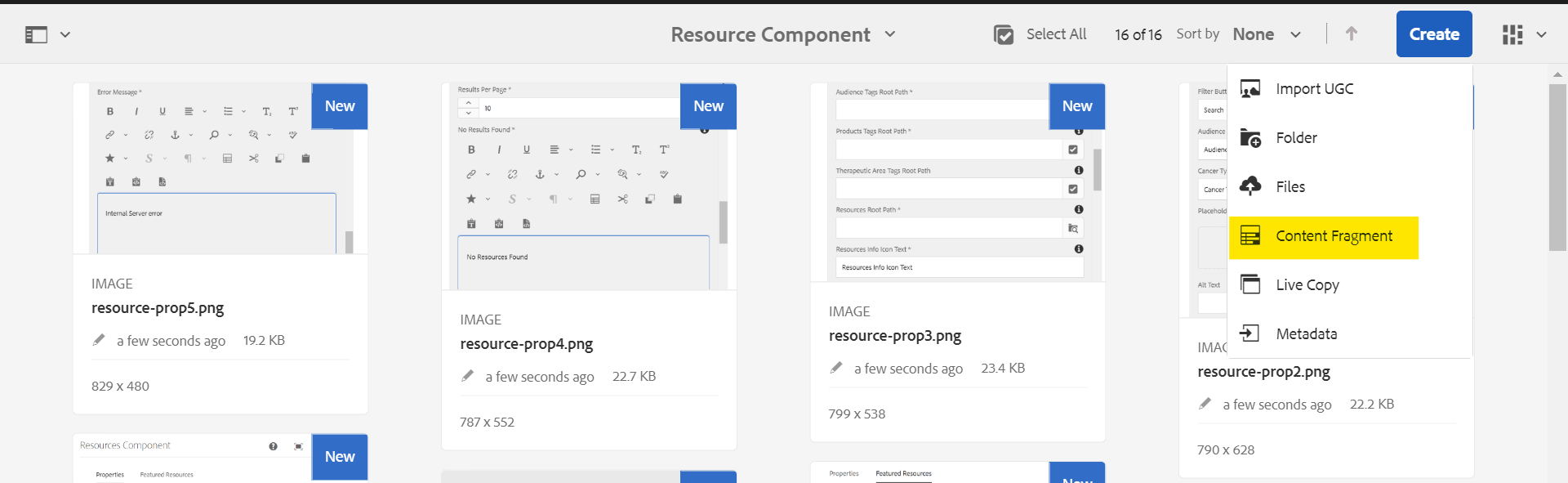
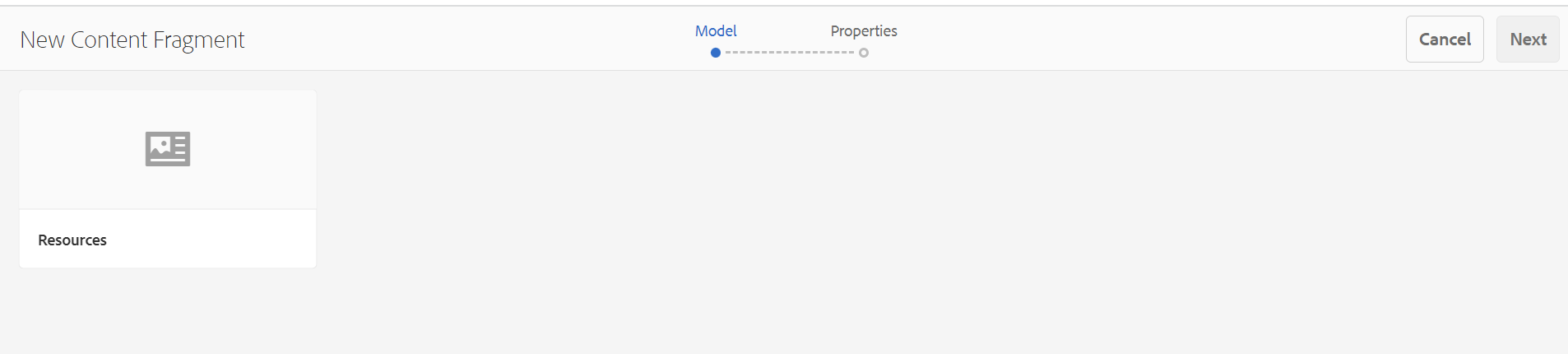
Step 2: Search and select the “Resources” model from the available models.

Step 3: Click on next and author the properties. Then click on create  PFB the reference. 

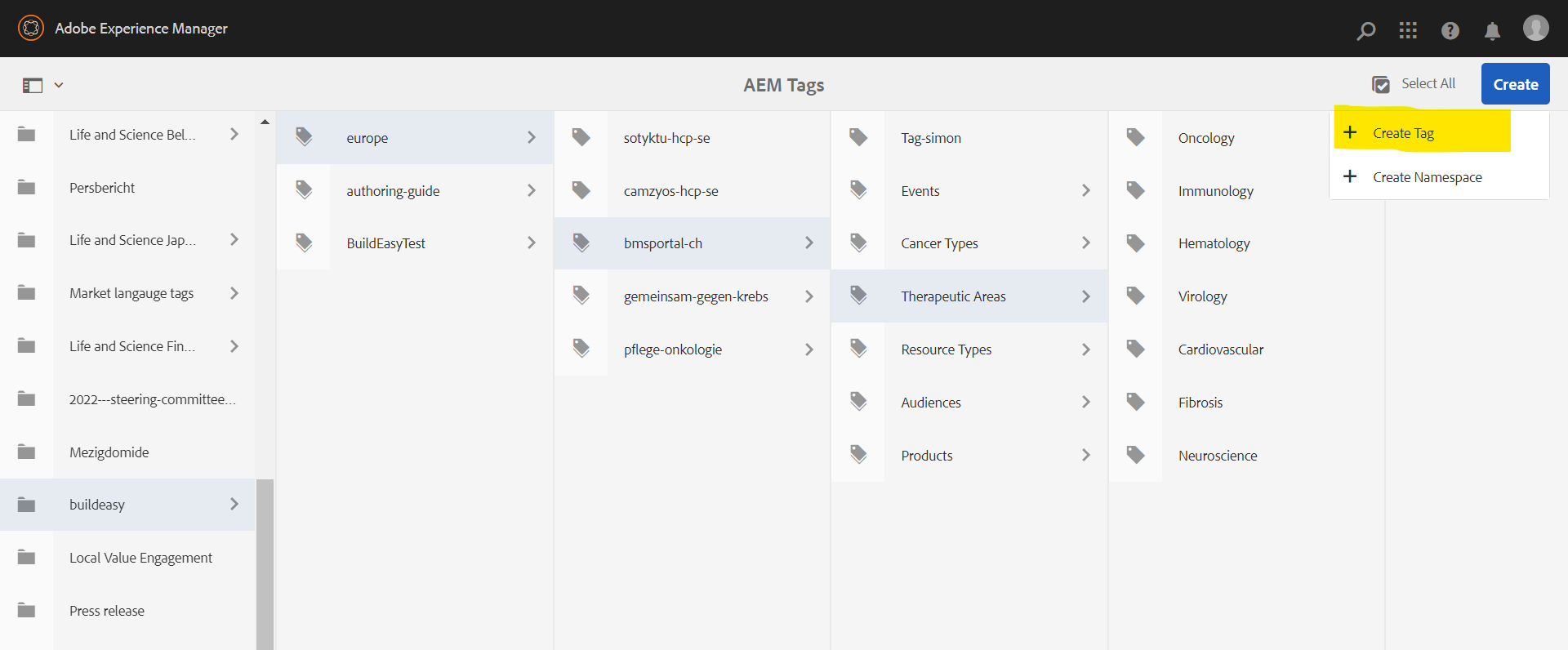
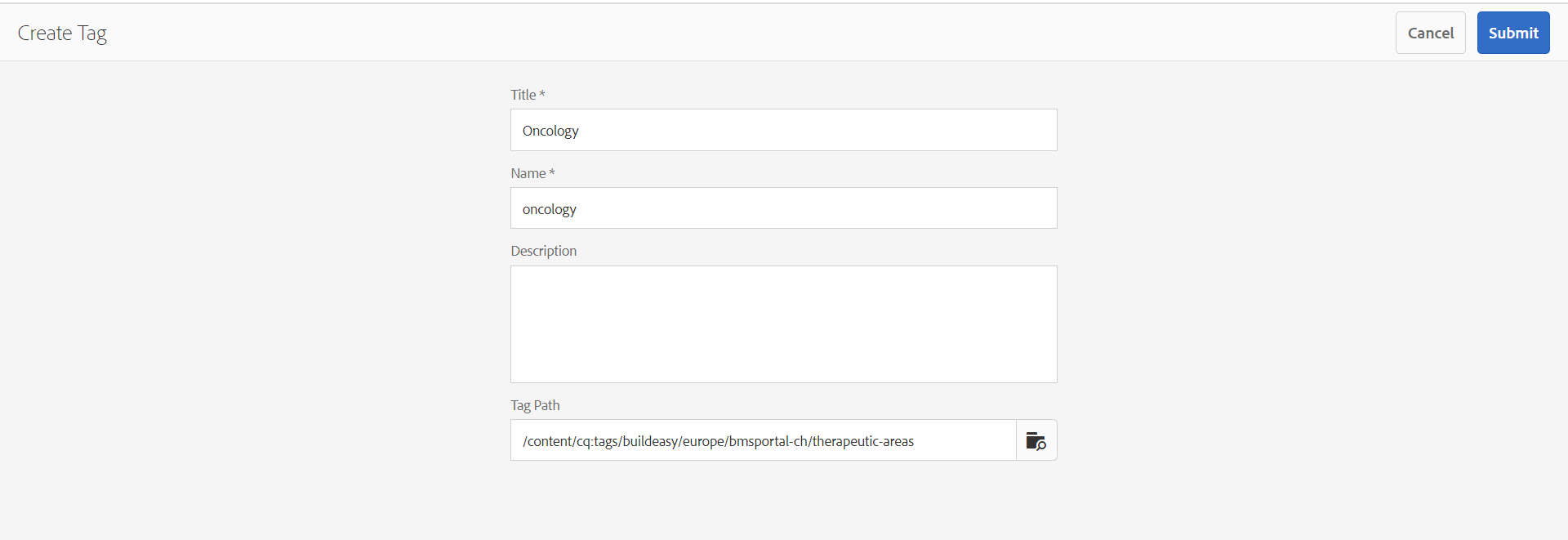
If any new tags are required, they can be authored Similarly for the respective site structure.

Author the properties for the tag and save it,  Authored tags can be used while authoring resources.

Step 4: Open and Author newly created Resource Content Fragment. Please author only “Master” variation and do not author any other variations in content fragment. 

Step 5: Author all the required and relevant fields.

Authoring Fields : Resource Content Fragments


Fields Description
Settings tab  
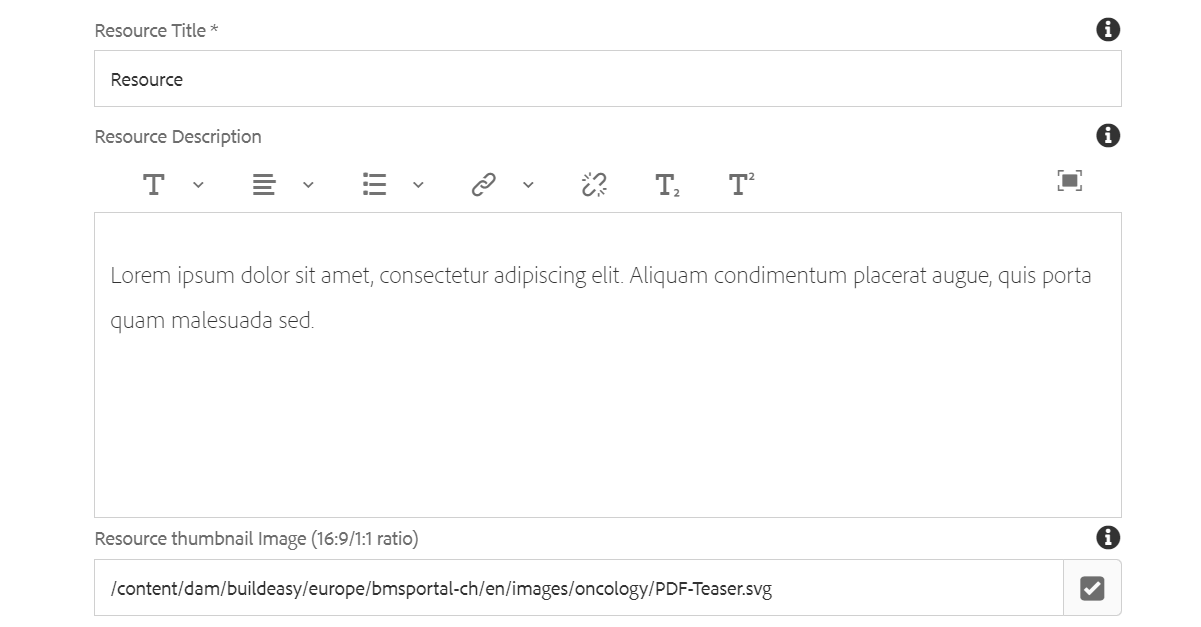
Resource Title This is a text authoring filed to author the title text.
Resource Description

This is a rich text authoring filed to author the description text.

  • Text can be aligned(left,center,right)
  • Lists and hyperlinks can be added 
  • Superscript, Subscript are supported.
  • If the user wants to have space within the lines, then while inserting text “ENTER” can be used. This will insert a <p> tag in rich text.
  • If the user wants to have no space within the lines, then while inserting text “SHIFT + ENTER” can be used. This will insert a <br> tag in rich text with no extra space.
Resource thumbnail image(16:9/1:1) Image can be authored from dam that needs to be displayed
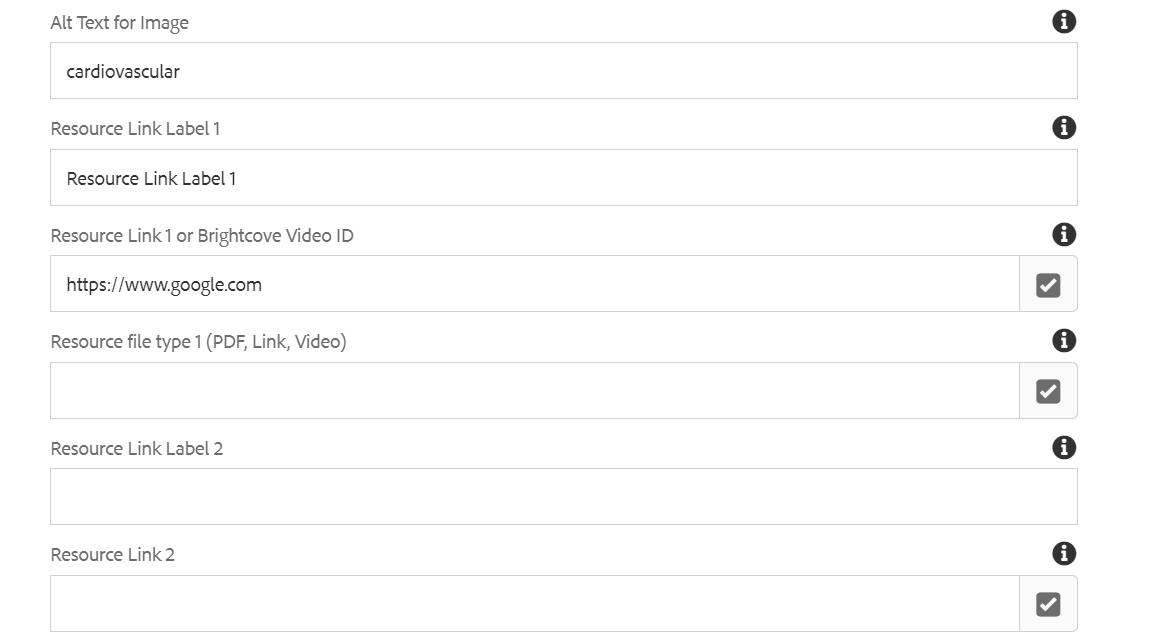
Alt Text for Image It will be text authoring field to provide alternative text for the image
Resource Link Label 1 It will be text authoring field to display the text to the Link  1
Resource Link 1 or Brightcove Video ID This is a path authoring field to author the link which needs to redirected on click of the link label or Text field to author Video ID
Resource file type (PDF, Link, Video) Tag field to have file type as PDF/Link/Video
Resource Link Label 2 It will be text authoring field to display the text to the Link  2
Resource Link 2 This is a path authoring field to author the link which needs to redirected on click of the link label
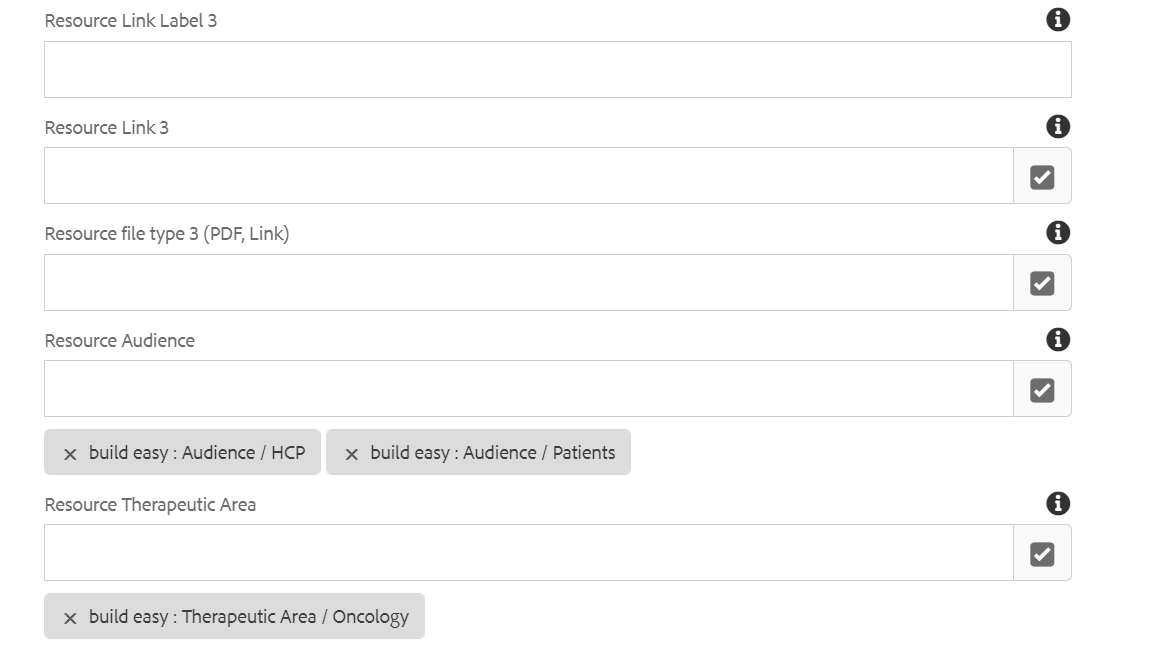
Resource Link Label 3 It will be text authoring field to display the text to the Link 3
Resource Link 3 This is a path authoring field to author the link which needs to redirected on click of the link label
Resource Audience This is a tag field to author single or multiple tags, to display and filter the resource content fragments
Resource Therapeutic Area This is a tag field to author single or multiple tags, to display and filter the resource content fragments
Resource Product This is a tag field to author single or multiple tags, to display and filter the resource content fragments
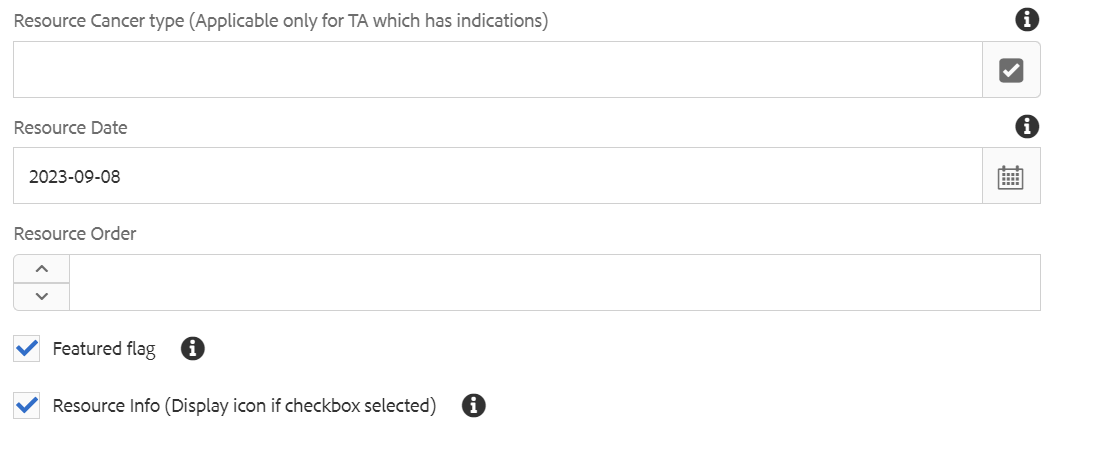
Resource Cancer type This is a tag field to author tag applied only for  Resource Therapeutic Area 
Resource Date Date picker field to author date for resources
Resource Order Number field to give weightage for same date resources
Featured Flag Checkbox field enable to have the resource as a featured resource.
Recource Info Checkbox field enable to display icon for the resource.

After authoring all the required fields and information related to resources. publish the content fragment. To publish the content fragment please follow the steps Click Here

Steps to author Resource Component

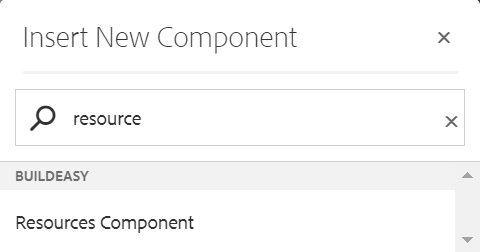
Step 1: Navigate to the page where you want to add the component. Click on "Drag components here" and click on + to add the component on page. 

Step 2: Search and select resource component from drop-down list and then drag and drop it onto the desired location on the page.

Step 3: Once the component is added, you can configure it by selecting configure icon as showcased in below image.

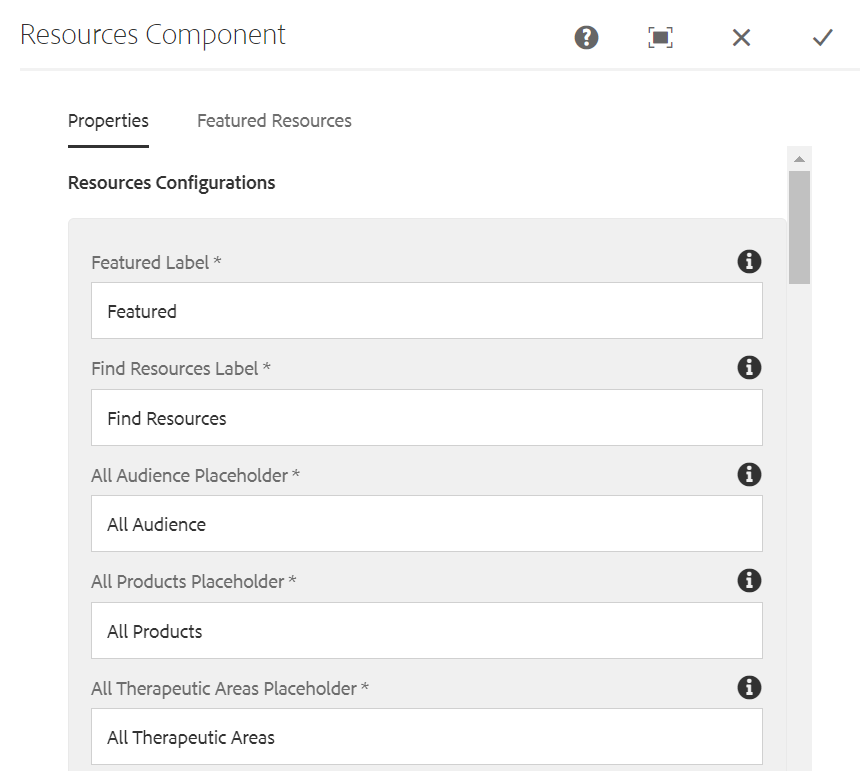
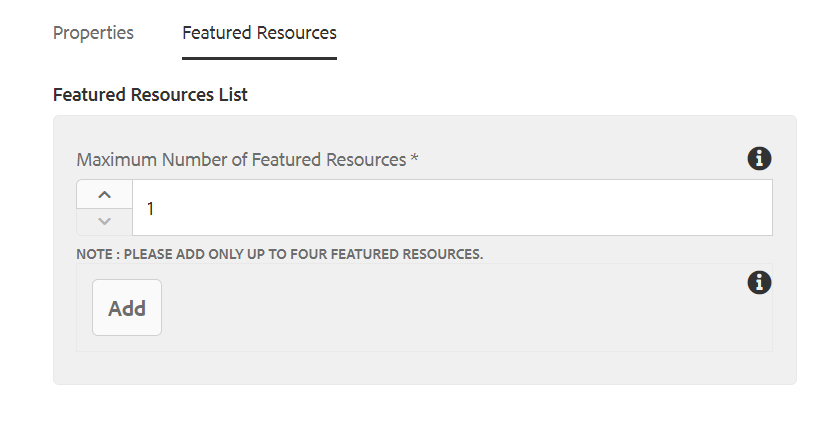
Step 4: In the component configuration dialog, you can author Properties and Featured resource Tabs

Authoring Field's : 

Authoring Field name Description
Properties tab  
Featured label It will be text authoring  field to display the Featured label
Find Resource It will be text authoring field to display the Find Resource label
All Audience Placeholder It will be text authoring field to display the All Audience filter label
All Products Placeholer It will be text authoring field to display the All Products filter label
All Therapeutic Area Placeholder It will be text authoring field to display the All Therapeutic Areas filter label
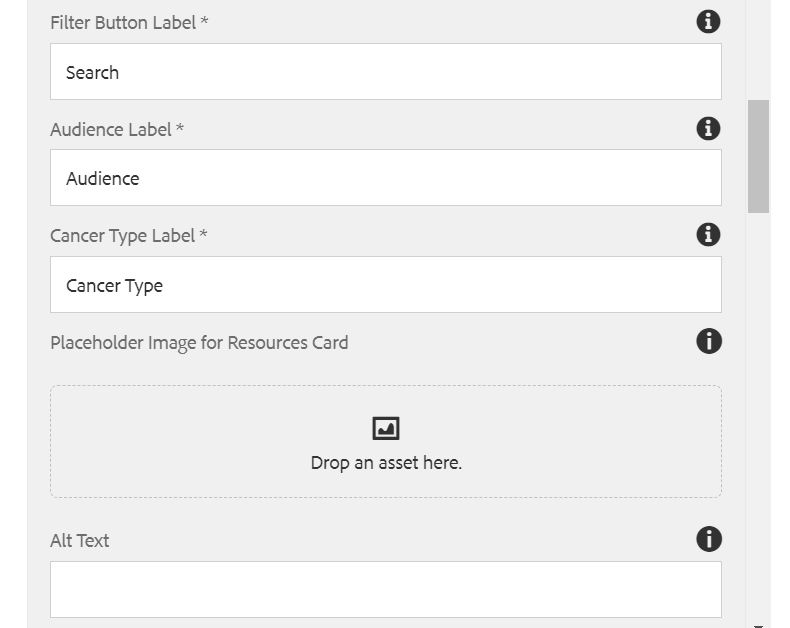
Filter Button Label It will be text authoring field to display the text to the button
Audience Label It will be text authoring field to display the Audience label
Cancer Type Label It will be text authoring field to display the cancer type label
Place holder Image For Resource Cards Image can be authored from dam that needs to be displayed, if image not authored in content fragments
Alt text It will be text authoring field to provide alternative text for the image
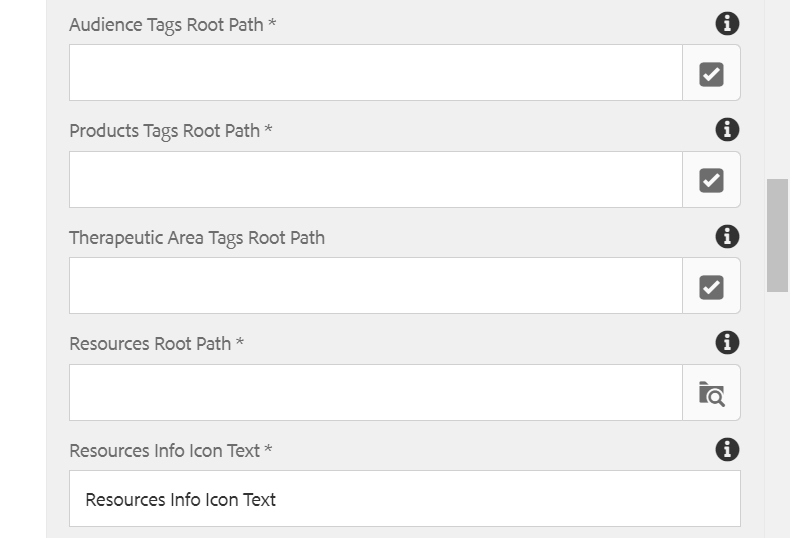
Audience Tags Root Path This is a tag field to author root path of Audience tags.
Product Tags Root Path This is a tag field to author root path of Products tags.
Therapeutic Area TagS Root Path This is a tag field to author root path of Therapeutic Area tags.
Resource Root Path This is a path authoring field to author the path from where resource content fragments to be Fetched.
Resource Info Icon Text It will be text authoring field to display the  Resource Info icon  text
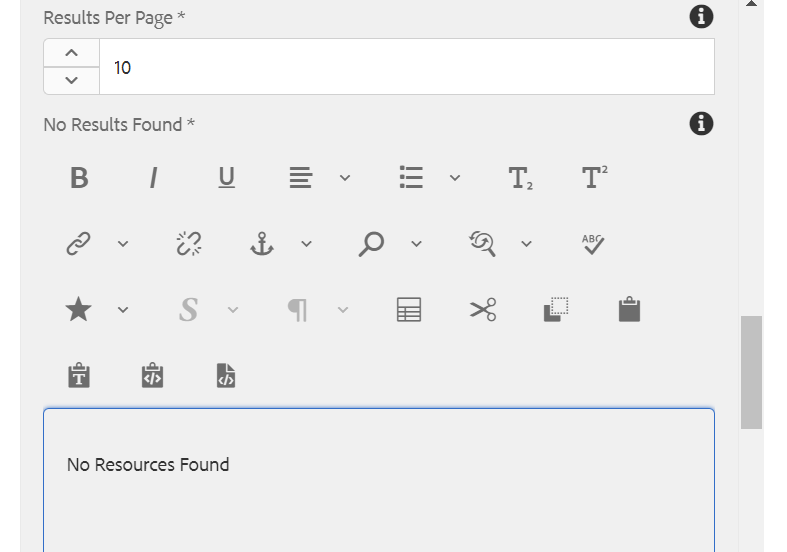
No Results Found It will be text authoring  field to display the text when there is no reults
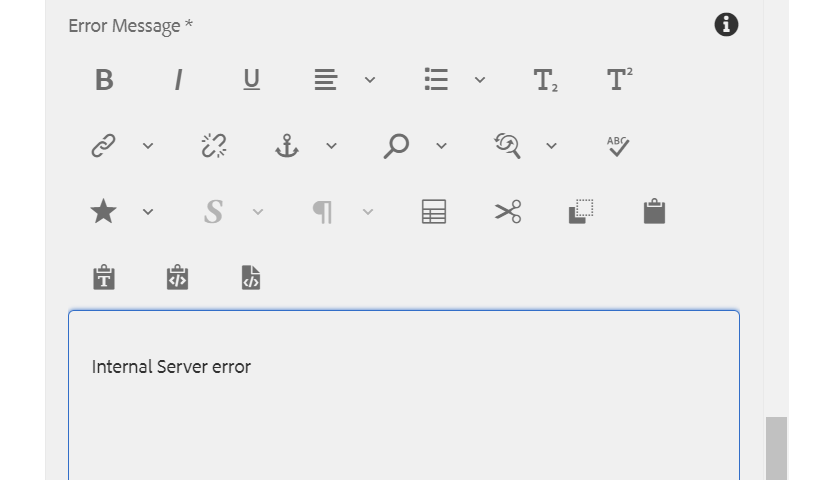
Error Message It will be text authoring  field to display the text 
Featured Resources tab  
Maximum Number of Featured Resources It will be number field authoring  field to display number of resources results to be displayed on page
Featured Resource This is a path authoring field to author the path which contains resource content fragments with featured flag enabled
Grid Layout Checkbox field enable to display the resources in the 3 column layout on the page.
Hide Filters Checkbox field enable to hide filter dropdown on the page.
Sort Label It will be a text authoring field to lable for sort option
First Sort Option It will be a text authoring field to lable the first sort option
Image Aspect Ratio It will be a dropdown authoring to select aspect ratio for all Resources images and images used in content fragments are also of same aspect ratio.


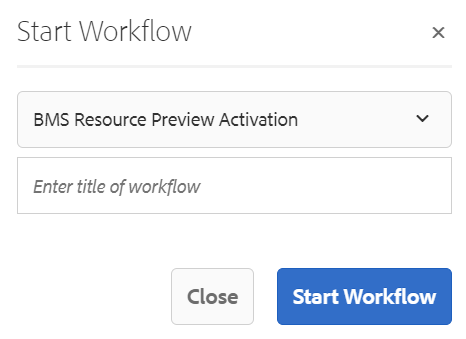
Step 5: After authoring all the fields, start workflow as shown below.

  • Select BMS Resource Preview Activation from the dropdown.
  • We can select appropriate title for the workflow and click on start workflow.
  • This will publish the page in preview environment and reviewers can review the page in preview instance.

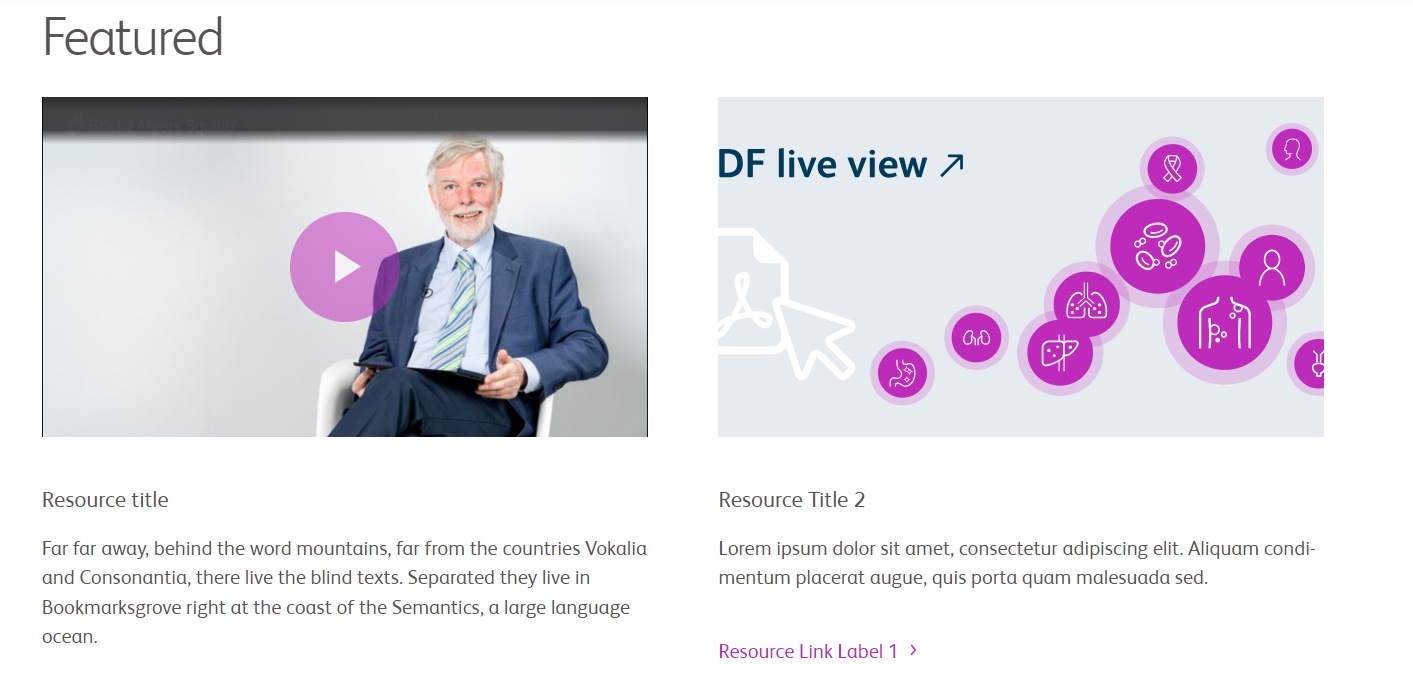
Desktop View: 

As shown in below Image, when you click on the copy icon, the link to that particular resource will be copied .

While Filtering, based on the filters selected, queryparams will get appended in the URL and the same URL can be shared to others, if by default on page load, particular filters has to be applied.