Intake Form
Intake Form
Intake Form
Intake Form
Intake Form

Global Utility Component

Step 1: Authoring Experience Fragment 
To use Global utility component, Experience fragments need to be authored.
A experience fragment can be created by navigating to Navigation -> click on Experience fragment as shown in the below example.

Step2: Create experience fragment by clicking “create” in the respective folder  and then select Experience Fragment

Step 3: Search and select the “BuildEasy Experience Fragment ” template from the available templates.

Step 3: Click on next and author the properties. Below is a reference. Next click on create 

Step 4: Select the created experience fragment master click on edit  and author Golobal utility component.

step 5. Click on "Drag components here" and click on + to add Global utility component on page. 

Step 6: Search and select Global utility component from dropdown list and then drag and drop it onto the desired location on the page.

Step 7: Once the component is added, you can configure it by selecting configure icon as showcased in below image.

Step 8: In the component configuration dialog, you can author all the required tabs

Authoring Fields


Field Description
Color tab  
Background Color This is a color picker field to choose background color for the Global utility component.
Text This is a color picker field to choose text color
Border Color This is a color picker field to choose border color for the component
Text Hover Color This is a color picker field to choose color for text on hover.
Nav 1-6 tabs (Note : All the nav tabs will have same authoring fields)
Title This is a richtext authoring field to author title for global utility menu
Link Path This is pathbrowser field to author link, on click it will redirect to authored path.
Aria Label This is a text authoring field to author aria label text for link.
Info Box This is a checkbox field if enabled information box will content be displayed.
Show External Icon This is a Checkbox field if enabled external icon will be displayed for the external links
Open as Modal

This is a Checkbox field, Enable to open Resources as Modal, Site must be whitelisted to open as a modal.

Note(whitelisted only live site URL not other sites)

Links  
Link Title This is a richtext authoring field to author link titles
Link Path This is pathbrowser field to author link, on click it will redirect to authored path.
Aria Label This is a text authoring field to author aria label text for link
Informatio Box  
Information Box This is a richtext authoring field to author information for the links
Hide in Destop This is a checkbox field if enabled nav tab will de hidden from global utility in desktop view
Hide in Mobile This is a checkbox field if enabled nav tab will de hidden from global utility in mobile view
Optional Text Tab  
optional text This is a richtext authoring field to author Optional text for the component.

Step 9 To render Global Utility component authored in Experience fragment to page Navigate to locale page properties Build Easy Site Settings and author Global utility nv Configurations. For more information Click Here 
(Note : If user dont want Global utility to render from locale page for specific Page and subsequent child pages navigate to required page properties and Override Global utility nav path . For more informantion Click Here)

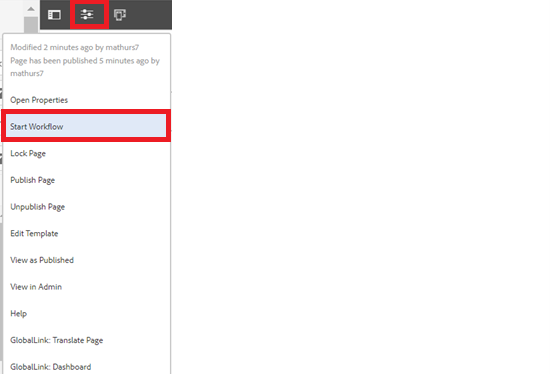
Step 10: After authoring all the fields, start the workflow as shown below.

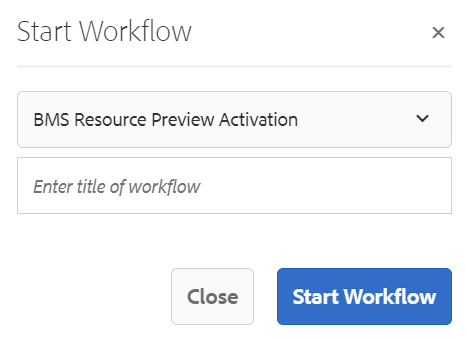
  • Select BMS Resource Preview Activation from the dropdown.
  • Author can select appropriate title for the workflow and click on start workflow.
  • This will publish the page in preview environment and reviewers can review the page in preview instance.