
Step 1: To get the component, we need to add the component on site.
Link Warning Modal Component

Link Warning Modal Component





The Link Warning Modal component is the creation of an Interstitial Popup.
Step 1: To get the component, we need to add the component on site.

Step 2: Add the Link Warning Modal component.
Note: Link Warning Modal component has to be authored on Locale page.

Click on the highlighted icon to configure the link warning component.

Step 3: Authoring of link warning component has two tabs: Cross-Site Warning Modal and External Link Warning Modal.
In Cross-Site Warning Modal we have Heading, Text/Message, Confirm Button Title, Cancel Button Title, Display Cross-Site Message, Blacklist Domains, and Blacklist URLs.
In External Link Warning Modal we have Heading, Text/Message, Confirm Button Title, Cancel Button Title, Display Cross-Site Message, Whitelist Domains, and Whitelist URLs.


Authoring Fields for Cross-Site Warning:
| Field name | Description |
| Heading | Heading for Cross-Site Warning Modal message. |
| Text/Message | RichText field for Cross-Site Warning Modal to showcase a message when external link is clicked on site. |
| Confirm Button Title | Provide confirm button title. |
| Cancel Button Title | Provide cancel button title. |
| Display Cross-Site Message | If checked, system will check internal authored paths to see if they are pointing to different market site, PLUS will also invoke the modal on below blacklist domains. |
| Blacklist Domains | Enter domain to blacklist the URL. |
| Blacklist URLs | Enter URL that you want to blacklist. Multiple URLs can be added. |
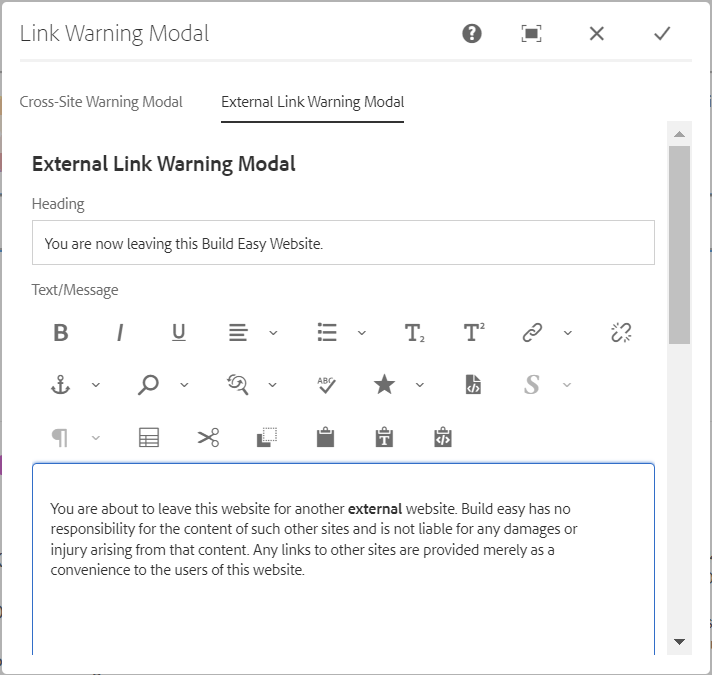

Authoring Fields
| Field name | Description |
| Heading | Heading for Cross-Site Warning Modal message. |
| Text/Message | RichText field for External Link Warning to showcase a message when moving to different site. |
| Confirm Button Title | Text authoring field to provide confirm button title. |
| Cancel Button Title | Text authoring field to provide cancel button title. |
| Whitelist Domains | Enter domain name to add domains that needs to be whitelisted. Whitelisted domains won't show the popup authored. |
| Whitelist URLs | Add URLs for which we don't want popup to be displayed. |
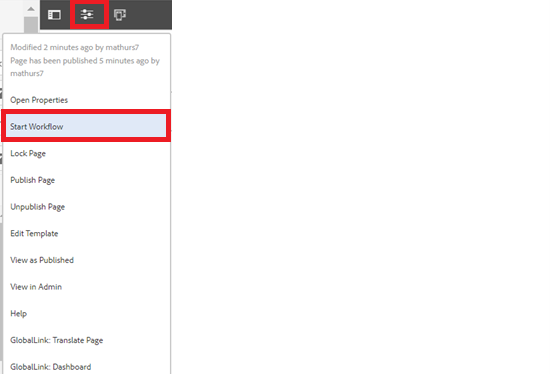
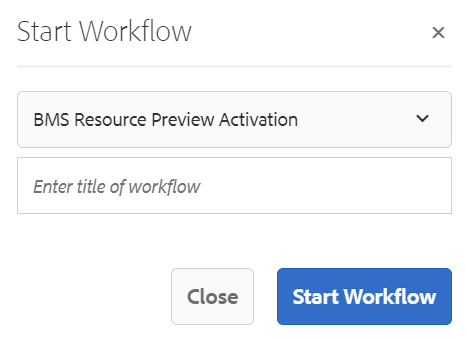
Step 4: After authoring all the fields, start workflow as shown below.
Desktop view:
