
Steps to Author Modal Popup on Site
Step 1: Click on the Create button on author URL where you want to create your page and select Page from dropdown.

Site Entry Modal





The Modal template allows the user to create a Page that is supposed to be displayed as a popup for first-time site users.
Steps to Author Modal Popup on Site
Step 1: Click on the Create button on author URL where you want to create your page and select Page from dropdown.

Step 2: Select BuildEasy Modal template from the list and click on next.

Step 3: Give the title and name for the page you want to create and click Create.

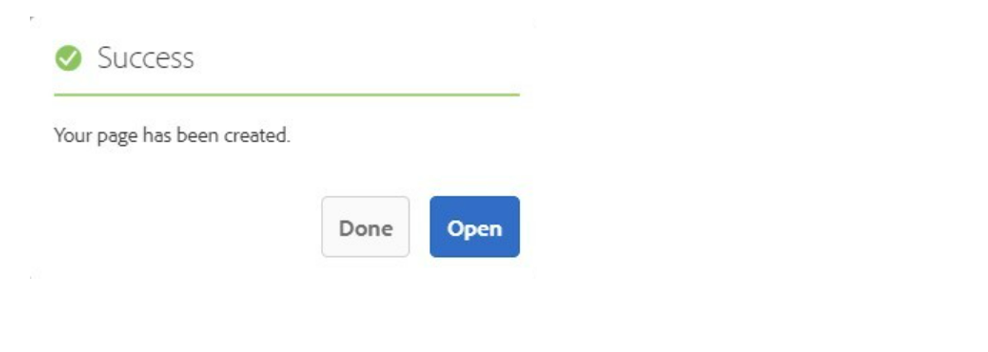
Step 4: You will receive a message popup stating “Your page has been created." You can either click on Done to create further pages or click Open to start editing the page.
Step 5: Page created using modal template by default contains 3 modal rich text components and two buttons, as shown below:

Step 6: Click on the higlighted icon to configure the modal rich text component.

Step 7: In the component configuration dialog, you can author modal content.


Authoring Fields
| Field | Description |
| Modal content | |
| Content | This is a text authoring field to author the content text. |
| Hide close icon | Check this checkbox to hide the close icon. |
Step 8: Click on the highlighted icon to configure the button.

Step 9: In the component configuration dialog, you can author Properties tab.

Authoring Fields
| Field | Description |
| Properties | |
| Label | This is a text authoring field to author the button text. |
| Button Properties | |
| Close modal | Check this box if you want to close the modal on click of this button. |
| Close cookie | Enabling cookie creation requires the Entry modal and Cookie Name to be authored in locale page properties. |
| Post click action | |
| No redirect | Check this box if you do not want to redirect on click of this button. |
| Redirect | Check this box if you want to redirect the page to the authored link on click of this button. |
| Redirection link | This is a path authoring field to author the redirect page link. |
| Open in a new window | Upon checking the checkbox redirected link will open in new window. |
Step 10: Similarly author the remaining 2 modal rich text component and button component, as shown below.

Step 11: If the user want to add components as per the requirement, Go to the page properties, inside Bootstrap Modal tab enable Use as POP-UP Modal as shown below.

Step 12: Click on drag components here, and click on + icon to add the component on page. and add required components as per the requirement.

Step 13: After authoring the components, If user wants to display modal pop-up upon clicking on any link. select the content to be shown as link in any page and add modal popup page path in the path browser field of link as shown in the below example.


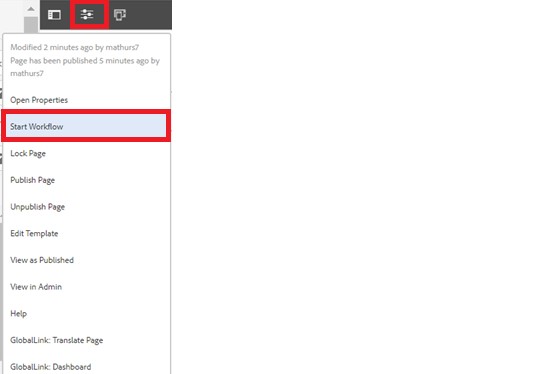
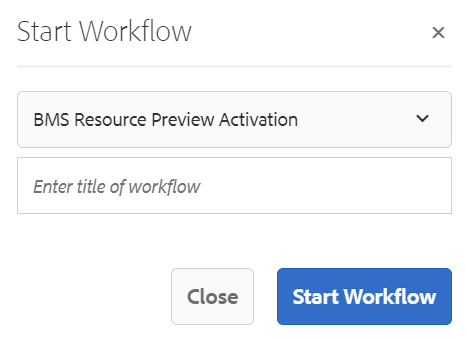
Step 14: After authoring all the fields, start workflow as shown below.
Once the page is created using modal template and is authored as per the requirement, go to the properties of locale page as shown below:

Navigate to the Additional Configuration tab and author Entry Modal Section.

Authoring Fields
| Field | Description |
| Entry Modal Section | |
| Path | This is a path authoring field to author the path of the page created using modal template. |
| Show modal for first users | By clicking this the modal popup will be shown for first-time users. |
| Cookie Name | This is a text authoring field to author the cookie name text. It is mandatory to author cookie name. |
| Escape key to close entry modal | Checkbox, if checked, will enable the escape key to close entry modal popup. |
Desktop View:
After authoring required fields, popup will be displayed on the site as showcased in below image:
