Intake Form
Intake Form
Intake Form
Intake Form
Intake Form

Create a Protected Page

Protected Content

Pages that have been authored under protected will be displayed as a blurred image with the header visible and a login modal will be presented.

After a successful login the page reloads with the full content.

If a user has not logged in successfully, some content will remain inaccessible.

Locked content will display a small symbol to notify the user visually. 

After the user has logged in, the symbol will no longer be visible for any content the user can access.

Steps to Author Protected Page

Step 1: Create a page under locale page with name as protected using BuildEasy general template.


Step 2: Click on the Create button inside protected and select Page from the dropdown.

Pages created under "protected" will be visually displayed as locked pages.


Step 3: Select BuildEasy general template from the available templates to create protected page.

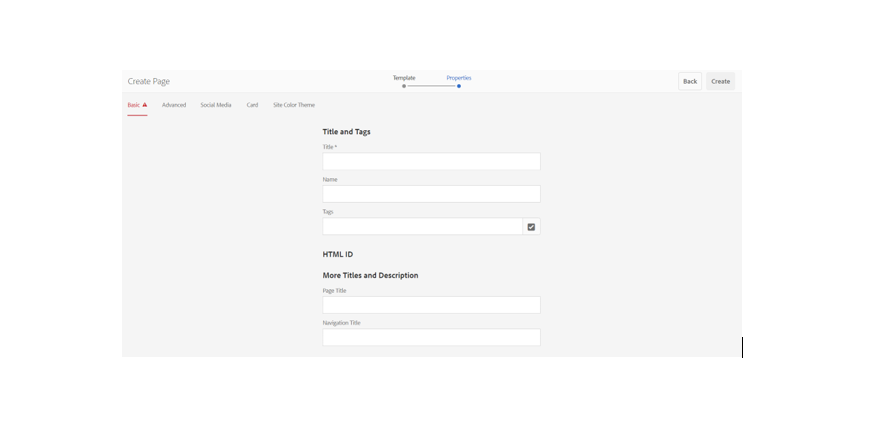
Step 4: Give the title and name for the page you want to create and click Create.

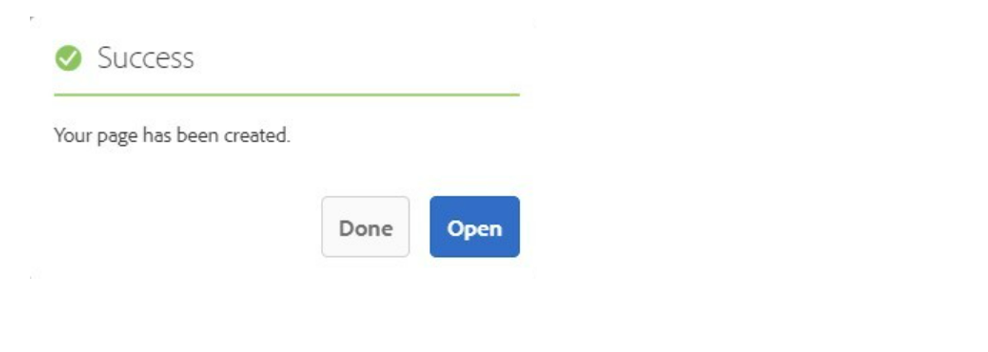
Step 5: You will receive a message popup stating “Your page has been created." You can either click Done to create further pages or click Open to start editing the page.

Step 6: The content authored here in this section will appear as blurred and can only be seen when valid login credentials are entered.

Content authored inside the container (as shown in below image) can be viewed only after user successfully logs in.

Desktop View: