
Steps to Author CTA Component
Step 1: Navigate to the page where you want to add the component. Click on "Drag components here" and click on + to add the component on page.

CTA Component





Steps to Author CTA Component
Step 1: Navigate to the page where you want to add the component. Click on "Drag components here" and click on + to add the component on page.

Step 2: Search and select CTA component from dropdown list and then drag and drop it onto the desired location on the page.

Step 3: Once the component is added, you can configure it by selecting configure icon as showcased in below image.

Step 4: In the component configuration dialog, you can author text, media, and buttons details.





Authoring Fields
| Authoring Field name | Description |
| Text tab | |
| Title | It will be text authoring field to display the title. |
| Text | It will be text authoring field to display the text. |
| Media tab | |
| Image | Image can be authored from dam that needs to be displayed by dragging the image from BMS assets. |
| Alt text | It will be text authoring field to provide alternative text for the image. |
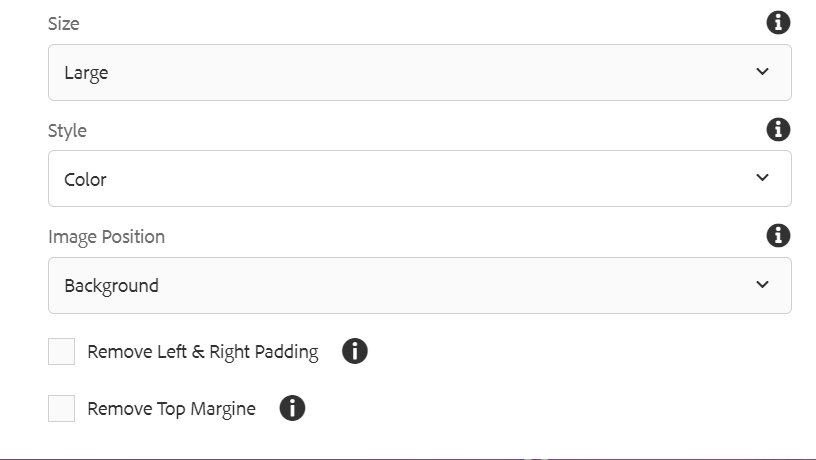
| Size | Size if the image can be selected from dropdown as:
|
| Style | Image style can be selected from dropdown as:
|
| Image Position | Image position can be selected from dropdown as:
|
| Remove Left & Right Padding | Checkbox field if enabled padding will be removed. |
| Remove Top Margin | Checkbox field if enabled top margin will be removed. |
| Buttons | |
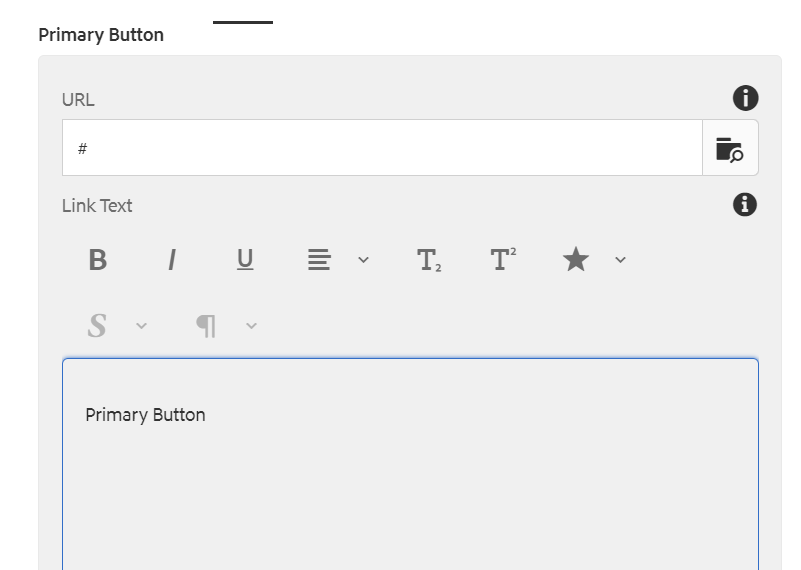
| Primary Button | |
| URL | Link will be authored here. Link can either be selected by browsing or external link can be authored. |
| Link Text | It will be text authoring field to display the text to be displayed on button. |
| Aria Label | It will be text authoring field to provide alternative text for image. |
| Not under BMS Authority | Checkbox if checked will display external link icon for any external link that will be authored. |
| Open in New Window | Checkbox field if enabled link will open in new window |
| Enable Text Wrap | Checkbox field if enabled text on the button will be wrapped |
| Button Radius | This is a number field to author the radius of the primary button. |
| Button arrow image | Button arrow Image can be authored from dam that needs to be displayed only for internal links |
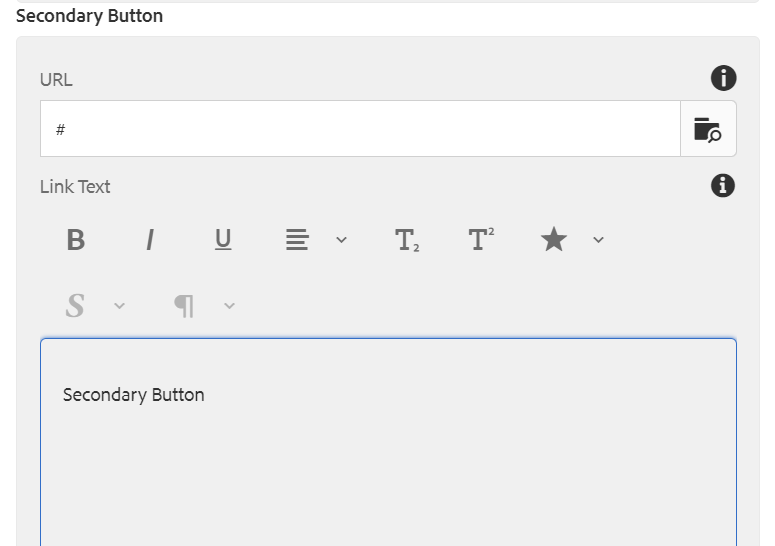
| Secondary Button | |
| URL | Link will be authored here. Link can either be selected by browsing or external link can be authored. |
| Link Text | It will be text authoring field to display the text to be displayed on button. |
| Aria Label | It will be text authoring field to provide alternative text for image. |
| Not under BMS Authority | Checkbox if checked will display external link icon for any external link that will be authored. |
| Open in New Window | Checkbox field if enabled link will open in new window |
| Enable Text Wrap | Checkbox field if enabled text on the button will be wrapped |
| Button Radius | This is a number field to author the radius of the secondary button. |
| Button arrow image | Button arrow Image can be authored from dam that needs to be displayed only for internal links |
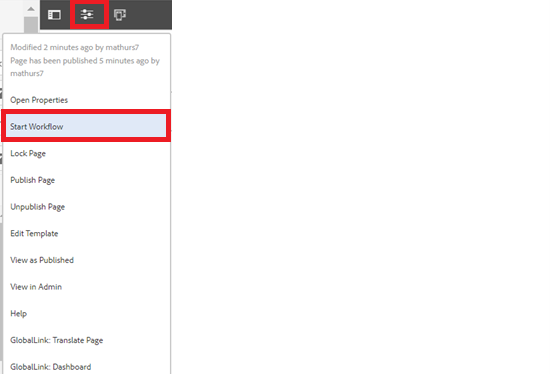
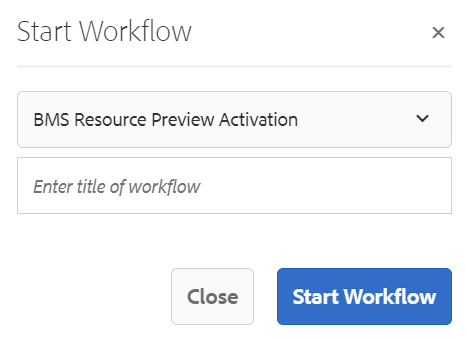
Step 5: After authoring all the fields, start workflow as shown below.
Desktop View:

Colored large call to action element
Colored large call to action element
Colored large call to action element
Colored large call to action element with No Image
Colored regular call to action element
Colored regular call to action element with Image on Right
Color - Large - Left call to action element
Large call to action elements can hold more text and two buttons.