
Steps to Author Featured Search:
Step 1: Click on Create and select "Page" on the desired location where you want to create the page.

Featured Search Component





Steps to Author Featured Search:
Step 1: Click on Create and select "Page" on the desired location where you want to create the page.

Step 2: Select BuildEasy Search Template to create search results page from the below list of available templates.

Step 3: Give appropriate Title and Name to the page and then click on Create.

Step 4: The created page will contain the featured search by default and you can author it by clicking on the author icon as shown below.


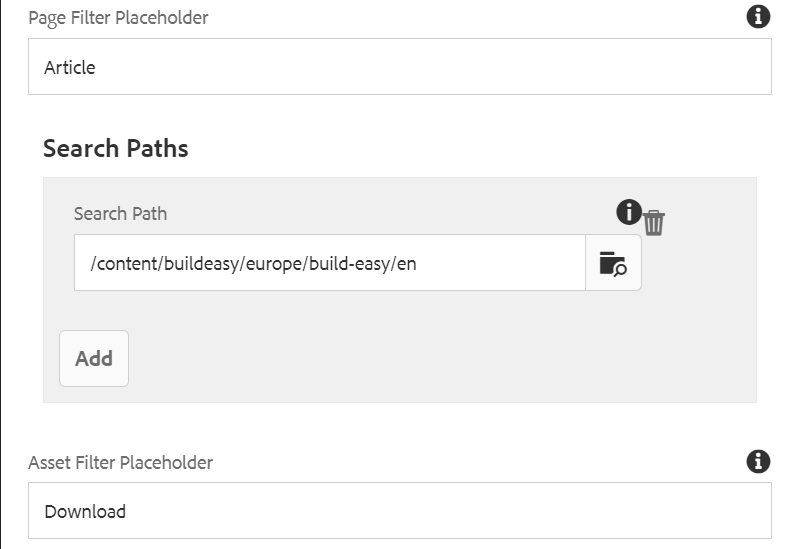
Step 5: In the component configuration dialog, you can author the Search Properties tab.

Authoring Fields
| Field name | Description |
| Search Results Pre Text | This is a text authoring field to author Pretext for Search Results. |
| Results | This is a text authoring field to author text for Search Results. |
| Sort By | This is a text authoring field to author Sort By text for search results. |
| Date | This is a text authoring field, where you can provide sort by details to the user. |
| You might also be interested in | This is a text authoring field to author text for additional interests. |
| Maximum results per page | It is numeric field to author maximum number of results to be displayed in the search results page. |
| Page Filter Placeholder | This is a text authoring field to author text for Place holder for pages under Filter. |
| Search Path | This a path authoring field to author the path where the author specifies the search to be conducted in the site. |
| Asset Filter Placeholder | This is a text authoring field to author text for Place holder for Assets under Filter. |
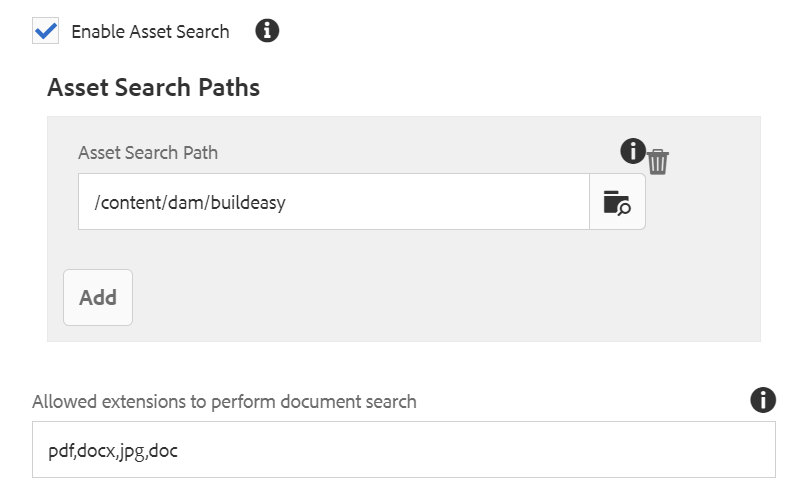
| Enable Asset Search | If checked, this checkbox enables the assets to be displayed in the search results. |
| Asset Search Path | This is a path authoring field to author the content dam path of the folder where asset search should take place. |
| Allowed extensions to perform document search | Allowed Extensions should be authored here separated by comma. (e.g., pdf, docx, doc) |
Note:
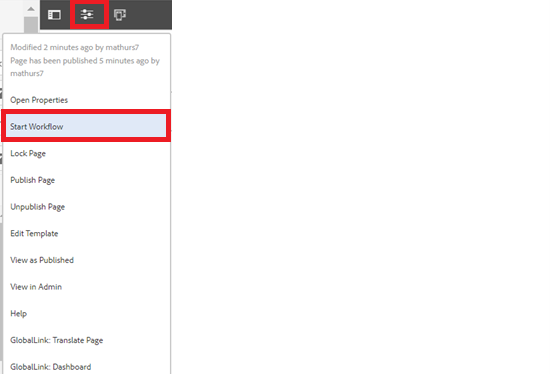
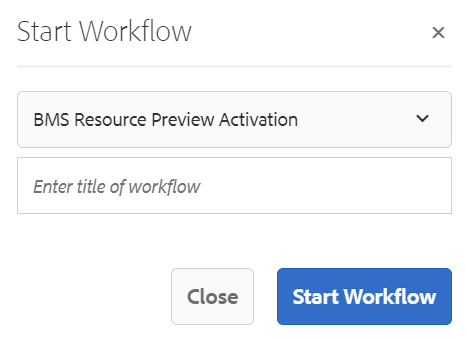
Step 5: After authoring all the fields, start workflow as shown below.
Desktop View:

Mobile View:
