
Step 1: Navigate to the page where you want to add the component. Click on "Drag components here" and click on + to add the component on page.
Download List Component

Download List Component





Step 1: Navigate to the page where you want to add the component. Click on "Drag components here" and click on + to add the component on page.

Step 2: Search and select download list component from dropdown list and then drag and drop it onto the desired location on the page.

Step 3: Once the component is added, you can configure it by selecting configure icon as showcased in below image.

Step 4: In the component configuration dialog, you can author the Text tab and Document tab.




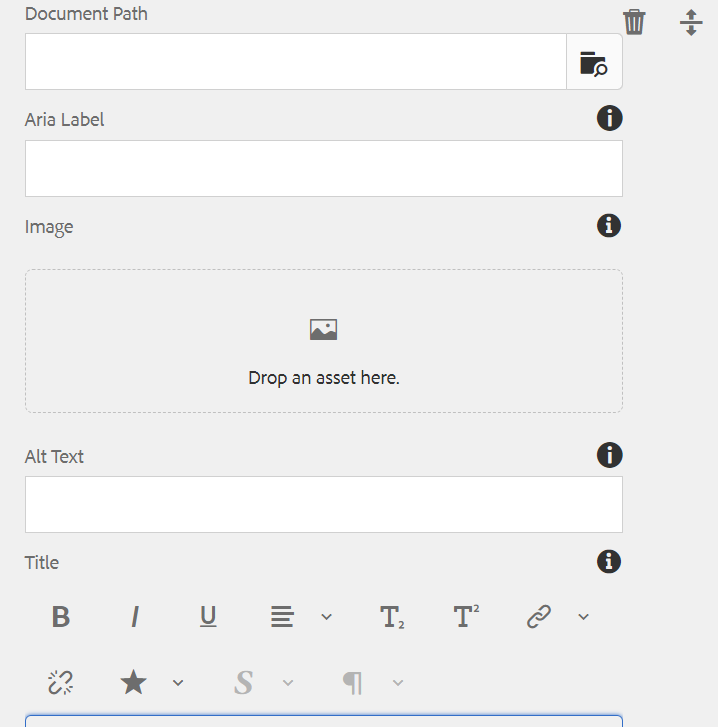


Authoring Fields
| Field | Description |
| Text Tab | |
| Title | This is a text authoring field to author the title text. |
| Text | This is a text authoring field to author the text. |
| Size | Size is available in three variations.
|
| Remove Left & Right Padding | Checkbox field if enabled padding will be removed |
| Document Tab | |
| Filter for tags | |
| Tag Options | This is a path authoring field to author the path of the tags. |
| Document List | |
| Document Path | This is a path authoring field to author the path of the already uploaded documents from dam. This is a multifield and more paths can be added by clicking on "add" button. |
| Arai Label | This is a text authoring arialabel field for document path |
| Image | Image can be authored from dam that needs to be displayed. Note: If not authored image will be picked form metadata of the PDF. |
| Alt Text | This is a text authoring alternate text field for image |
| Title | This is a text authoring field to author title for Documents Note: If not authored titled will be picked from metadata of the PDF |
| Description | This is a text authoring field to author description for Documents Note: If not authored titled will be picked from metadata of the Asset |
| Download button text | This is a text authoring field to author the text on the download button. |
| Button Radius | This is a number field to author the radius of the button |
Note: This component will display the documents that are tagged to Tags selected by the user and list of documents manually added by the user in Document List Multifield.
To ensure that the author can view the results, they must first create a folder with the page name in the relevant locale and then place all assets inside it. When the author uses tags, the system will search for the folder name within the locale folder in the digital asset management (DAM) system. It is important to note that the folder name may vary depending on the locale.
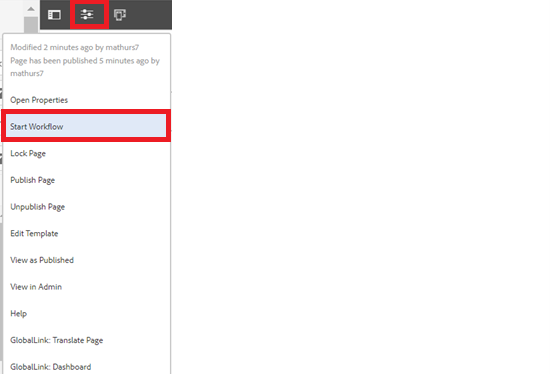
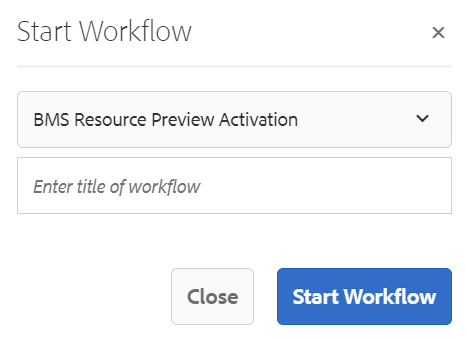
Step 5: After authoring all the fields, start workflow as shown below.
Desktop View:
Example: Large Size Download List
This is an example of a large size download list. It may contain a lot more elements.

Example: Small Size Download List
This is an example of a small size download list. It may contain a lot more elements.
Mobile View:
