
Step 1: Navigate to the page where you want to add the component. Click on "Drag components here" and click on + to add the component on page.
Video Player Component

Video Player Component





Authoring guide for video player component
Step 1: Navigate to the page where you want to add the component. Click on "Drag components here" and click on + to add the component on page.

Step 2: Search and select video player component from dropdown list and then drag and drop it onto the desired location on the page.

Step 3: Authoring of video player– Text Tab and Media Tab need to be configured.


Authoring Fields for Text Tab:
| Field name | Description |
| Title | This is text authoring field where we can author the title text. Subscripts and superscripts are supported. |
| Text | This field is text authoring field where we can author description text. Subscripts and superscripts are supported. |

Authoring Fields for Media Tab:
| Field name | Description |
| Video name | This is text authoring field to author video name. Upon entering any keyword to this field user will get suggestions on videos related to that keyword. |
| Video Play Type | DropDown field with two different options
|
| Video image | Image path needs to be authored in this field that needs to act as image for the authored video. |
| Alt Text | This is text authoring field where we can author the alternate text. |
| Video Player ID | This field is to author the Video ID of Brightcove Video.If not authored id will be picked from page properties. |
Available Video Layout Types
Authoring of video player V2 Variation – Text Tab and Media Tab need to be configured.

Authoring Fields for Text Tab: For V2 Variation
| Field name | Description |
| Title | This is text authoring field where we can author the title text. Subscripts and superscripts are supported. |
| Text | This field is text authoring field where we can author description text. Subscripts and superscripts are supported. |


Authoring Fields for Media Tab: For V2 Variation
| Field name | Description |
| Video name | This is text authoring field to author video name. Upon entering any keyword to this field user will get suggestions on videos related to that keyword. |
| Feedback Page Path | This field is used to apprear feedback button on page |
| Thumbnail Image | Image path needs to be authored in this field that needs to act as image for the authored video. |
| Thumbnail Alt Text | This is text authoring field where we can author the alternate text. |
| Video Player ID | This field is to author the Video ID of Brightcove Video.If not authored id will be picked from page properties. |
| Therapuetic Area Name | This field is used for analytic team to fetch the data |
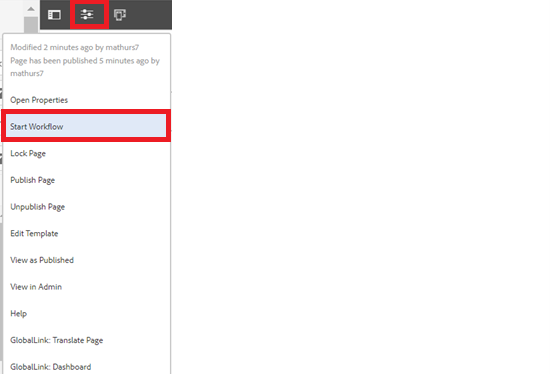
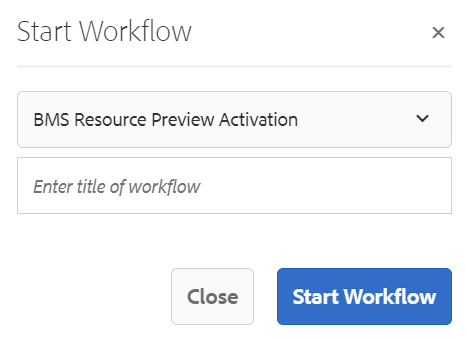
Step 5: After authoring all the fields, start workflow as shown below.
Desktop View:
