
Steps to Author Glossary Container Component:
Step 1: Click on drag components here, and click on + icon to add the component on page.

Glossary Container Components





Steps to Author Glossary Container Component:
Step 1: Click on drag components here, and click on + icon to add the component on page.

Step 2: Search and select glossary container component from dropdown list and then drag and drop it onto the desired location on the page.

Step 3: Click on the highlighted icon to configure the component.

Step 4: Author the glossary container component as shown below.

Authoring Fields
| Authoring Field | Description |
| Heading | This field is used to display heading |
| Glossary Description | This field is used to provide glossary description |
| Instruction to author glossary container component with glossary container -item component | |
| 1.First drag and drop glossary container | |
| 2.Inside glossary container component drag and drop glossary container item component Note: We can add as many glossary container items compoents in any order | |
| 3.Author the fields in glossary container component as mentioned above | |
| 4.Author the fields in glossary container item component | |
| 5.Once author all the fields for both the component then in publish the page so in dispatch we will see sorting for all the items are automatically handled |
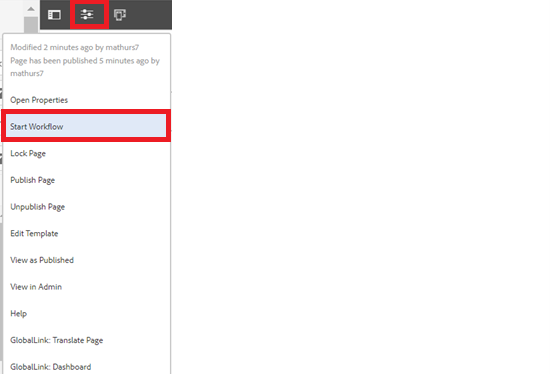
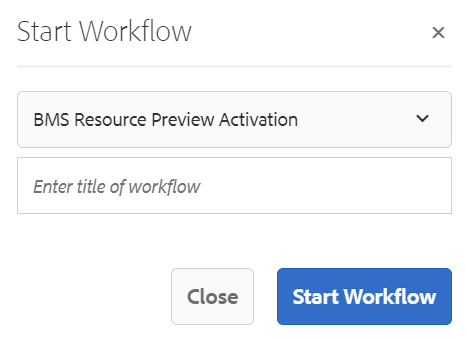
Step 5: After authoring all the fields, start workflow as shown below.
Example : Glossary Container Component
Words you may hear your care team use when talking you.