
Step 1: To author search component we need to configure this component on locale page.
Search Component

Search Component





The Search Component is the creation of a search bar.
Step 1: To author search component we need to configure this component on locale page.
Step 2: Access the content tree from left navigation as shown, select the configure icon corresponding to the search component, and click on configure icon.

Step 3: Authoring of search component – Placeholder Text, Search Image, Text for Frequently Searched, Search Result Page Path, and multifield of Frequently Searched Keywords.


Authoring Fields
| Authoring Field | Description |
| Placeholder Text | It will be a text authoring field to author placeholder text. |
| Search Image | It is path authoring field to author image. |
| Text for Frequently Searched | It will be a text authoring field to author frequently searched text. |
| Search Result Page Path | Path authoring field to author path of the search results page. Note: Search Results page has to be created using BuildEasy search template. |
| Frequently Searched Keywords | Text authoring field to author frequently searched keywords. |
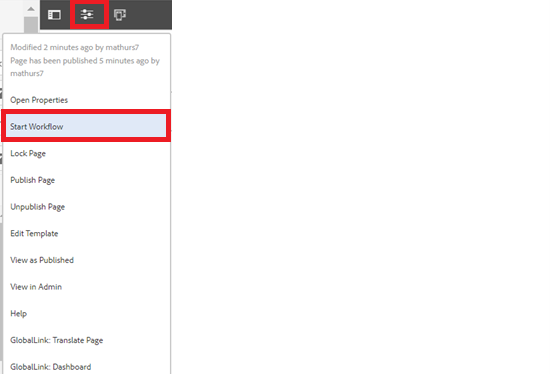
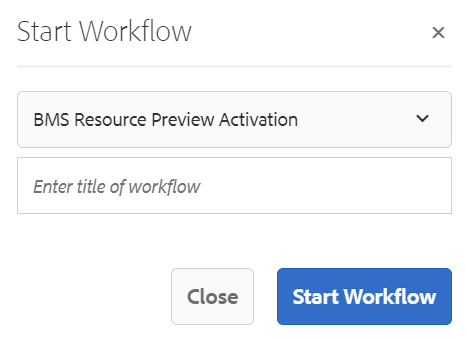
Step 5: After authoring all the fields, start workflow as shown below.
Desktop View:

